When you uninstall Biscuits Bundles, several irreversible actions occur:
Subscription is cancelled
Your subscription to Biscuits Bundles is automatically cancelled by Shopify.
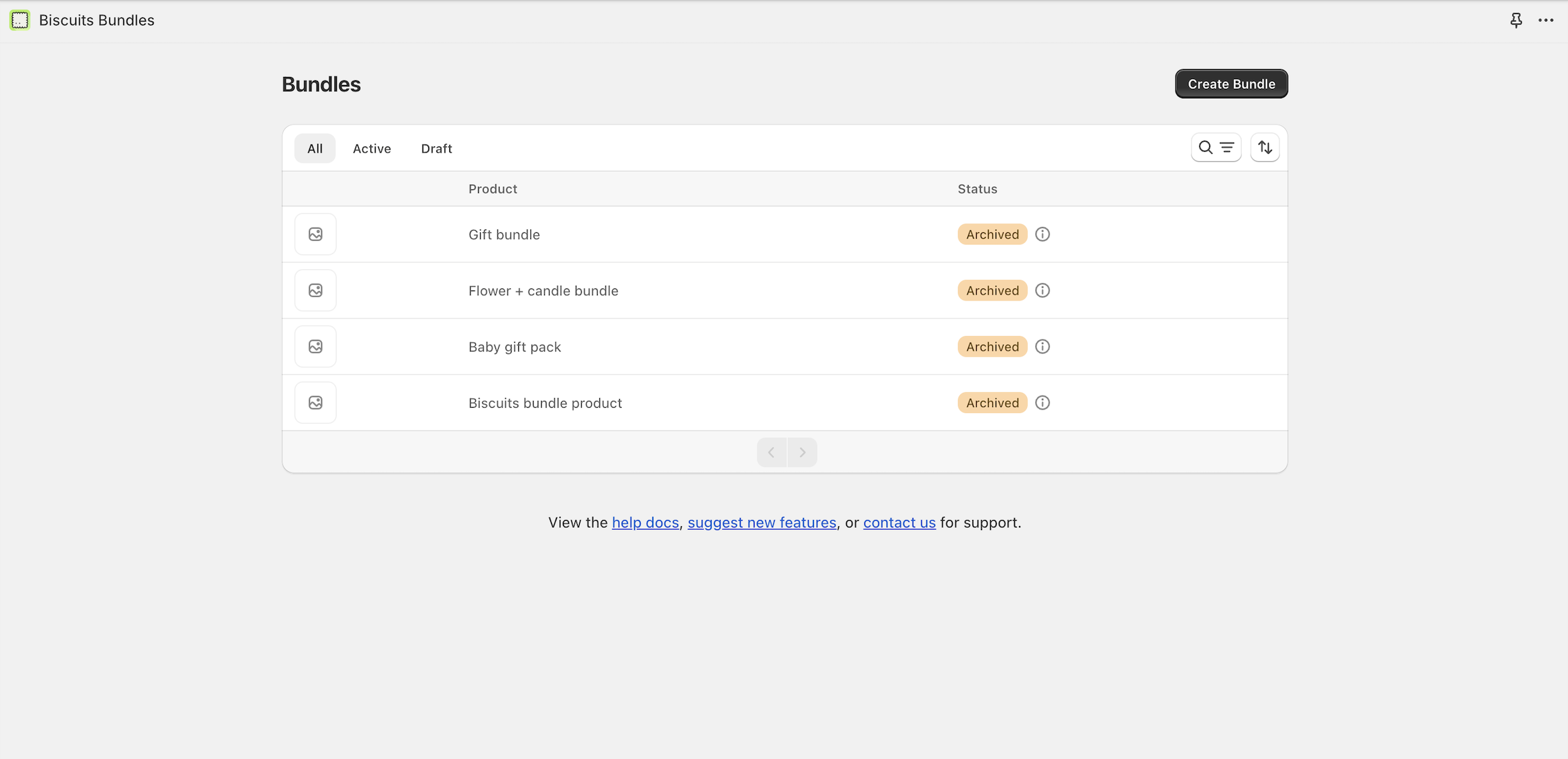
Bundle products are set to draft and disconnected
Shopify automatically disconnects all bundle products created by our app and sets them to draft mode.
You will need to recreate all bundles if you decide to reinstall the app.
Previous bundles will no longer be useable.
App data is deleted
All app data stored within Shopify that contains bundle information is deleted by Shopify upon uninstallation.
However, app owned metafields and metaobjects remain due to Shopify limitations. Run our cleanup tool before uninstalling to delete these metafields.
App blocks are disabled
All app blocks added to your theme by Biscuits Bundles will no longer be editable or visible in the theme editor. Shopify will automatically 'remove' them on uninstallation.
However, the configuration settings for these blocks will remain in your theme's template JSON file until you make a new save on that template.
This does not affect your theme at all and this is how Shopify uninstalls app blocks.
App owned metafields or metaobjects
While the app is installed, Biscuits Bundles creates app owned metafields that Shopify reserves exclusively for the app.
After uninstalling:
These metafields remain in the store database
They are inactive and not used by your store
They cannot be accessed, edited, or deleted by the merchant
Biscuits Bundles has no access to your store and cannot interact with them
This behaviour is controlled entirely by Shopify and applies to all apps that create app owned metafields.
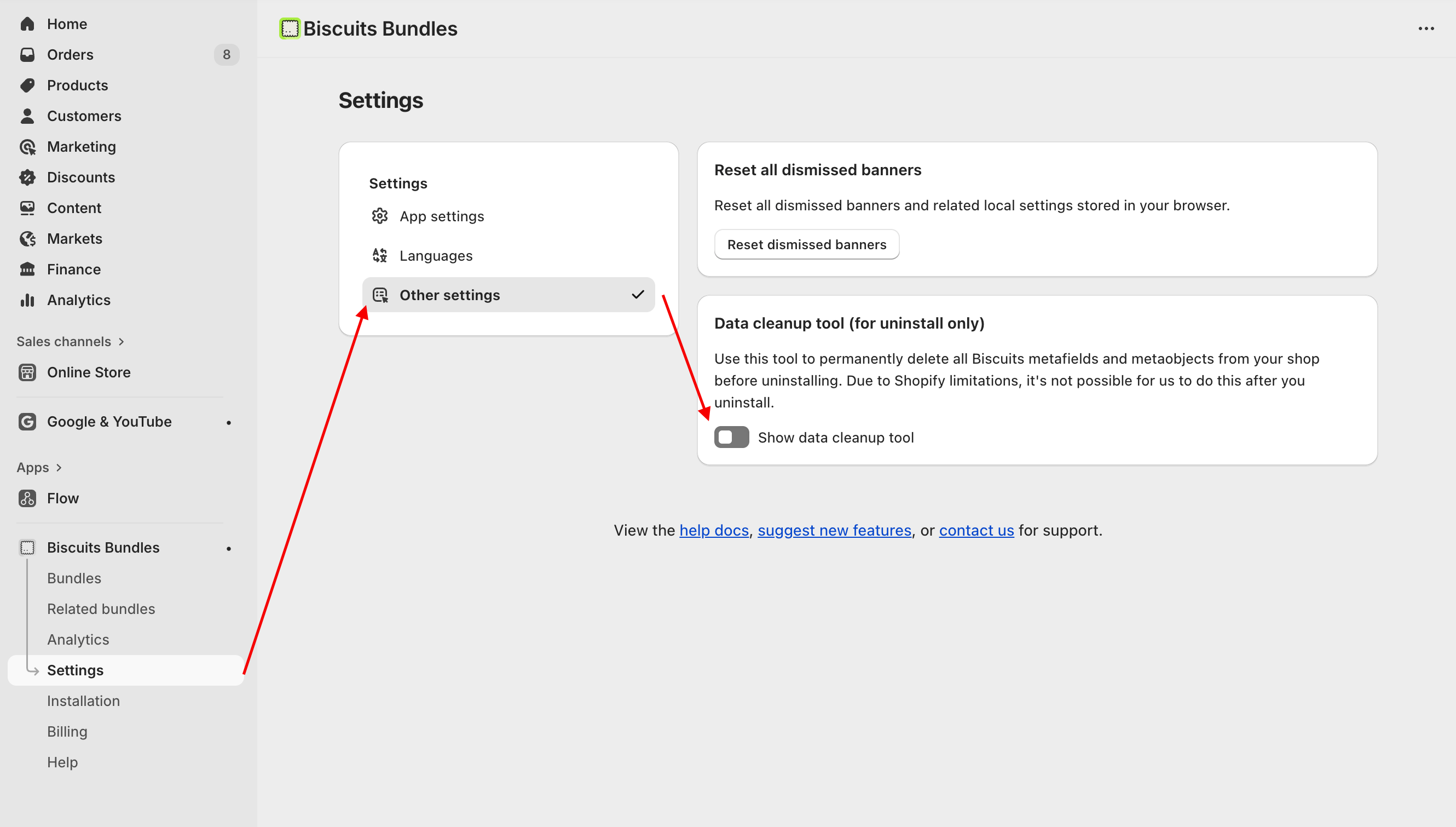
The only way Shopify allows these metafields to be removed is to use our 'Data cleanup tool' (in Settings > Other settings > Data cleanup tool) inside the app to delete these metafields and metaobjects before uninstalling the app.
Theme configuration files
Shopify themes have configuration files which save the settings for each section and block in your theme. When you add app blocks to your themes, Shopify automatically creates the relevant configuration changes needed to support the blocks.
When an app is uninstalled, Shopify automatically removes the block, but does not update the configuration files.
As we do not have permissions to edit your theme files, or access your store as soon as the app is uninstalled, there is no way for the app to automatically clean these configuration files up.
We recommend removing all Biscuits app blocks manually from your theme before uninstalling the app.
Due to all of the Shopify related issues mentioned, we recommend the folllowing process when uninstalling Biscuits Bundles:
Remove all metafields and metaobjects using the 'Data cleanup tool' (in Settings > Other settings > Data cleanup tool)
Remove all Biscuits Bundles app blocks manually from all relevant templates in your theme editor.
Proceed with uninstalling the app.
Due to the way Shopify product bundles work, bundle products are tied to a specific installation of the app.
When Biscuits Bundles creates a bundle product, that product is owned by that installation of the app. This ownership cannot be transferred to a new installation.
Because of this:
Previously created bundle products cannot be reconnected
They cannot be managed or used again
New bundles must be created after reinstalling
Within 48 hours of uninstalling, Shopify sends us a mandatory event to delete or anonymise all personal data stored on our servers, in line with GDPR requirements.
We understand that these limitations may cause inconvenience, and we encourage you to reach out to our support team if you have any further questions or require assistance before uninstalling the app.