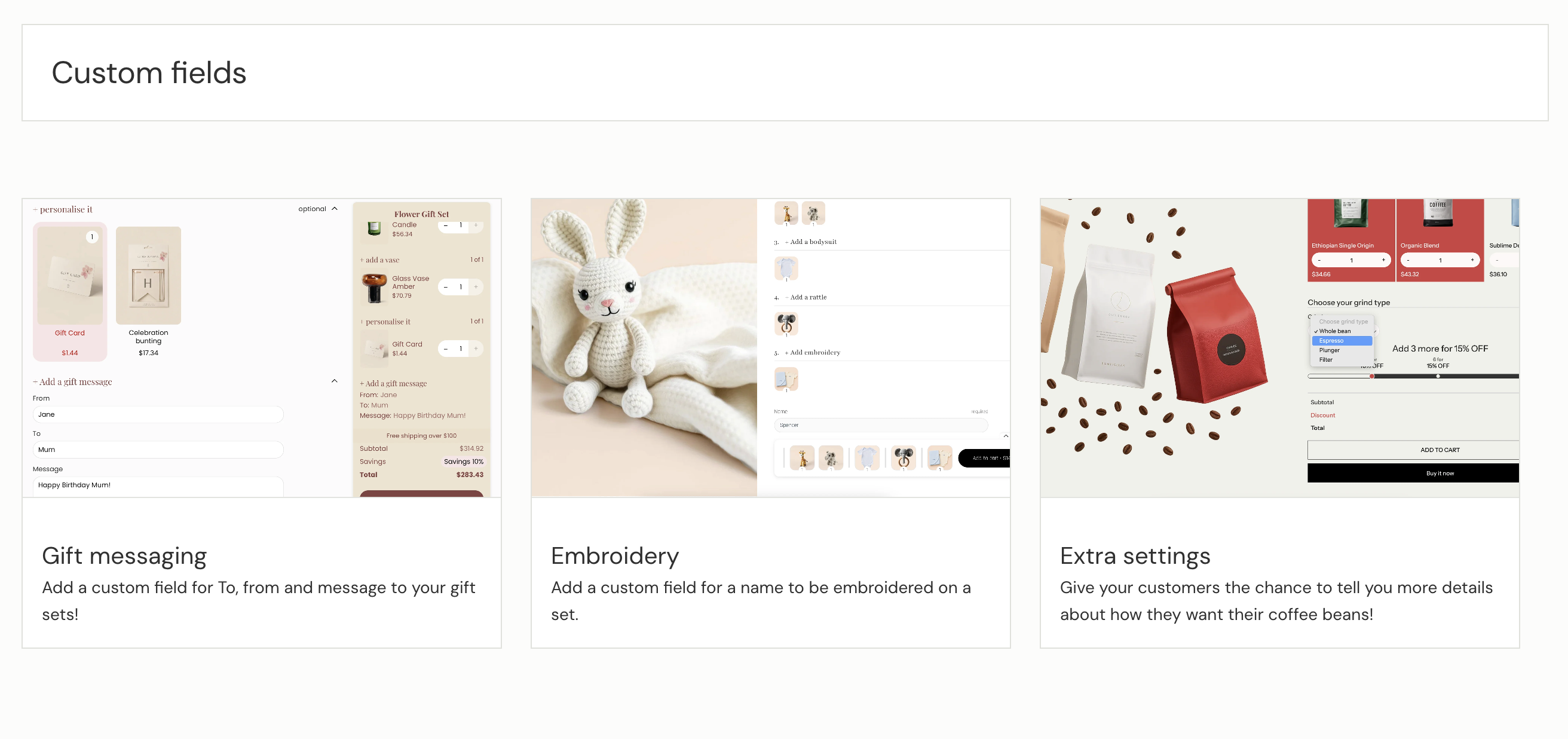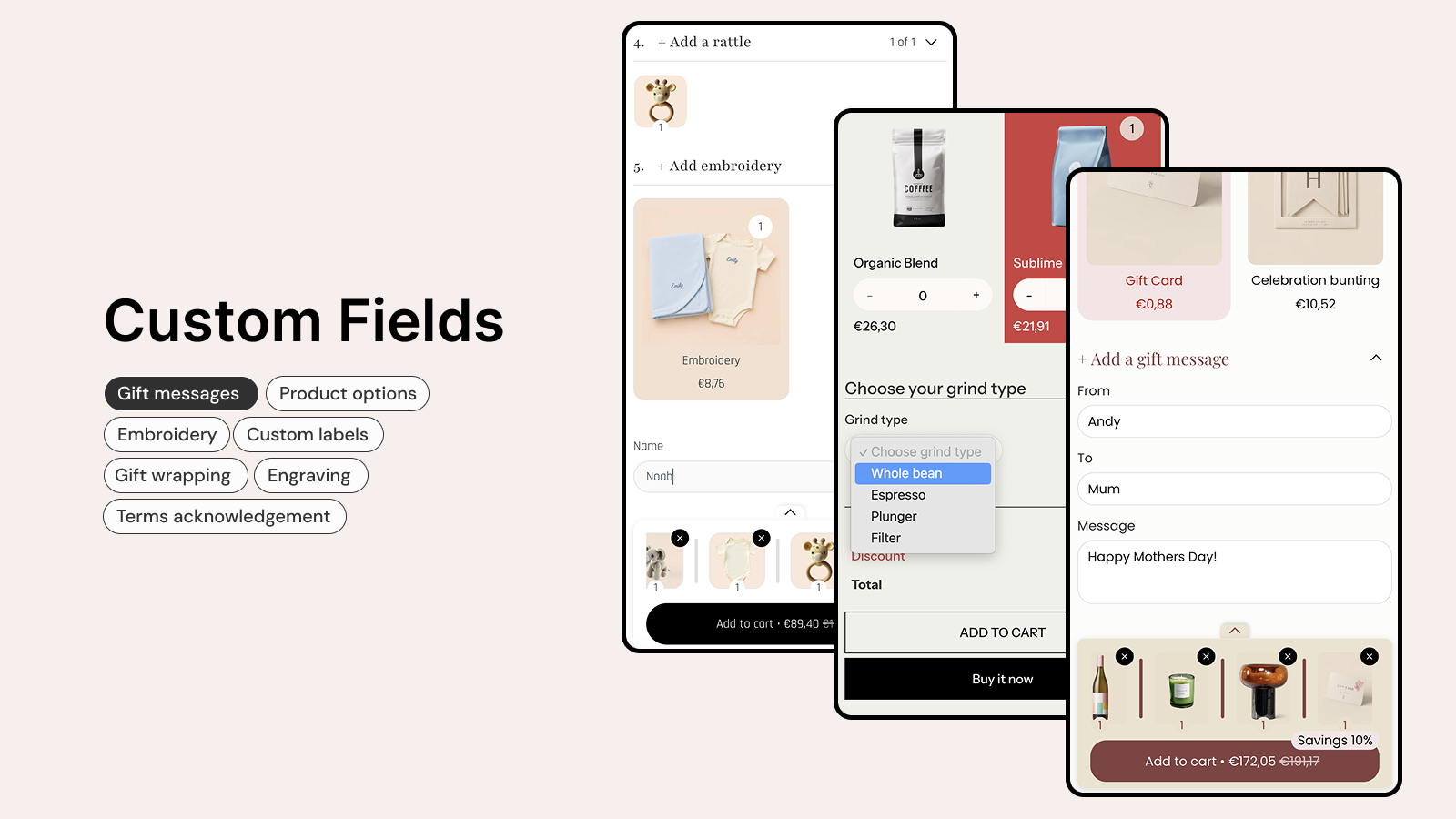
Custom Fields let you add your own input fields to a bundle step. Customers fill them in while they build their bundle, and their answers are saved to the order as line item properties - so you and your fulfilment team can see exactly what each customer asked for.
You can collect short text, long text, radio button choices, dropdown selections, and checkboxes. Fields are organised into a custom field group, which you attach to a step in your bundle.
Custom Fields is available on the Standard and Advanced plans, and is currently a Beta feature. Adding more than one group, and showing fields only on a specific selection, are available on the Advanced plan.
A custom field group is a container that you attach to a step. The group is where you set the title, where the fields appear, and who sees them.
Custom fields are the individual inputs (text boxes, dropdowns, etc.) that live inside a group. A group always contains at least one field.
Property name is the key the answer is saved under on the order. Each field has one.
Open a bundle in the Biscuits Bundles app.
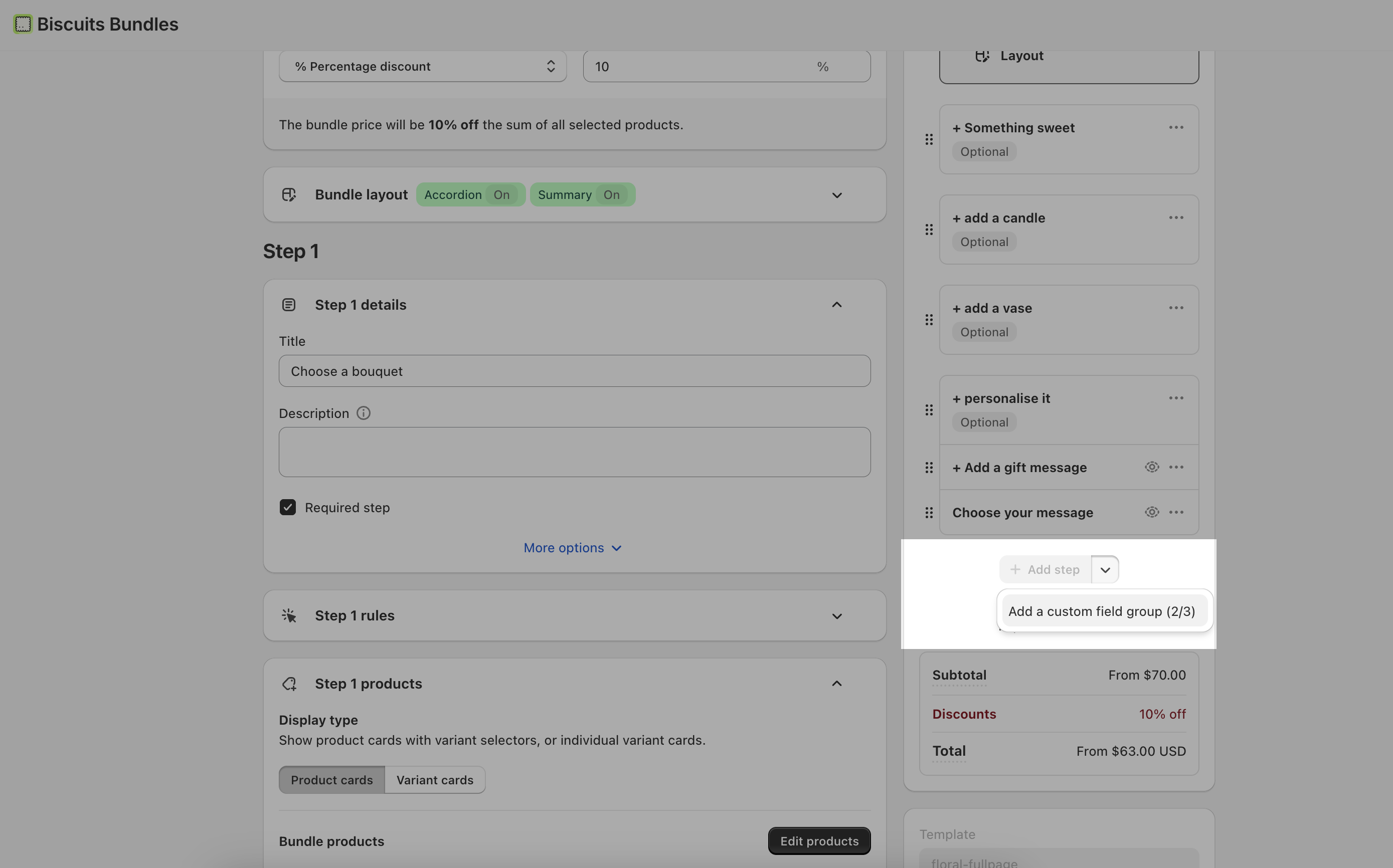
In the builder sidebar (the list of steps on the left), find the Add step button. Click the small arrow (chevron) next to it.
Choose Add a custom field group from the menu.
A new group is created with one text field inside it, ready to edit.
The number next to the menu item (for example 1/1) shows how many groups you have used and your plan's limit. The Standard plan includes one group per bundle; the Advanced plan lets you add more. If you have reached your limit, the option is disabled with a prompt to upgrade.
A group is attached to a step and can sit either before or after that step's products.
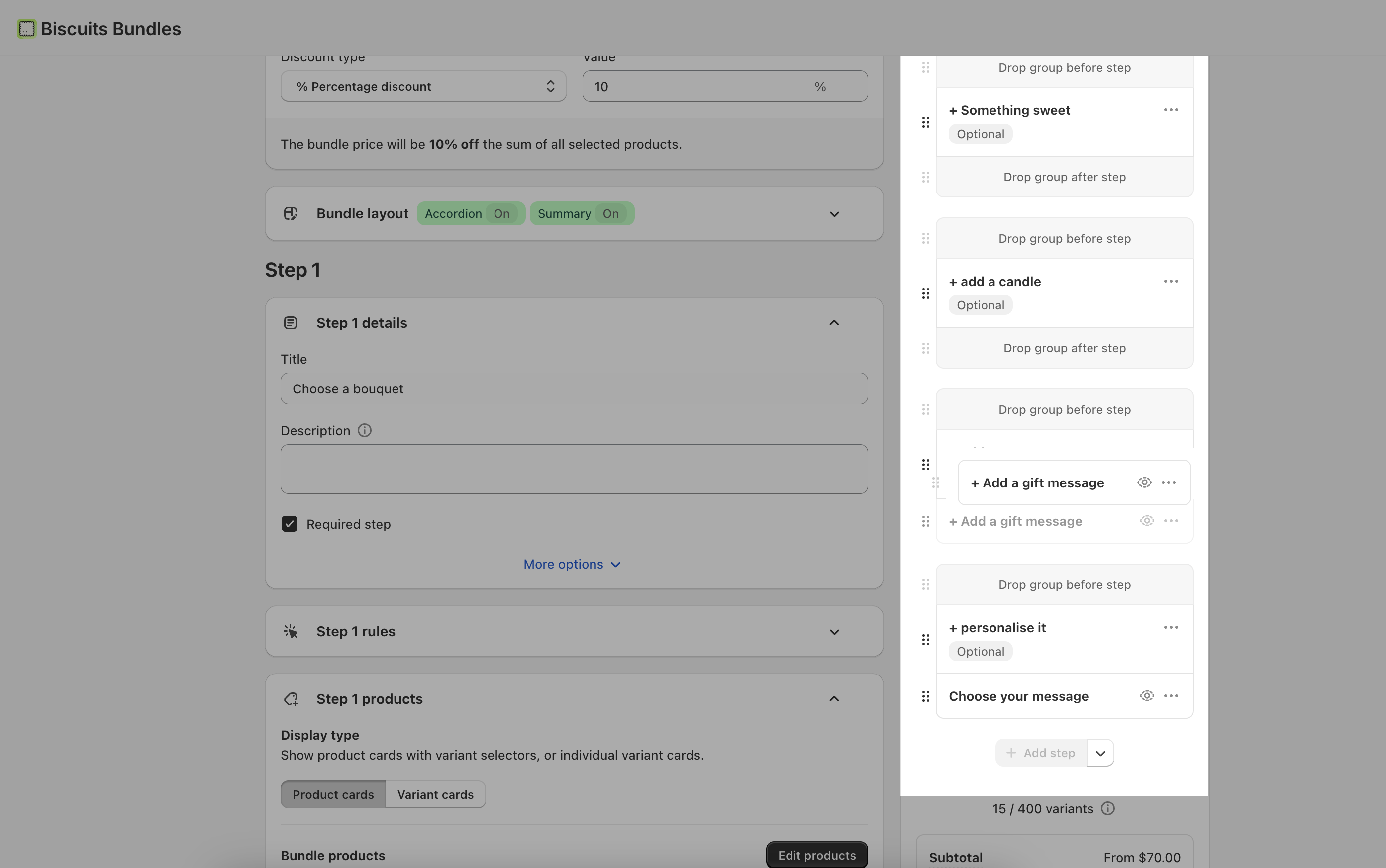
To move a group, drag it in the builder sidebar:
Drop it into the area above a step to show it before the products.
Drop it into the area below a step to show it after the products.
You can drag a group to a different step the same way.
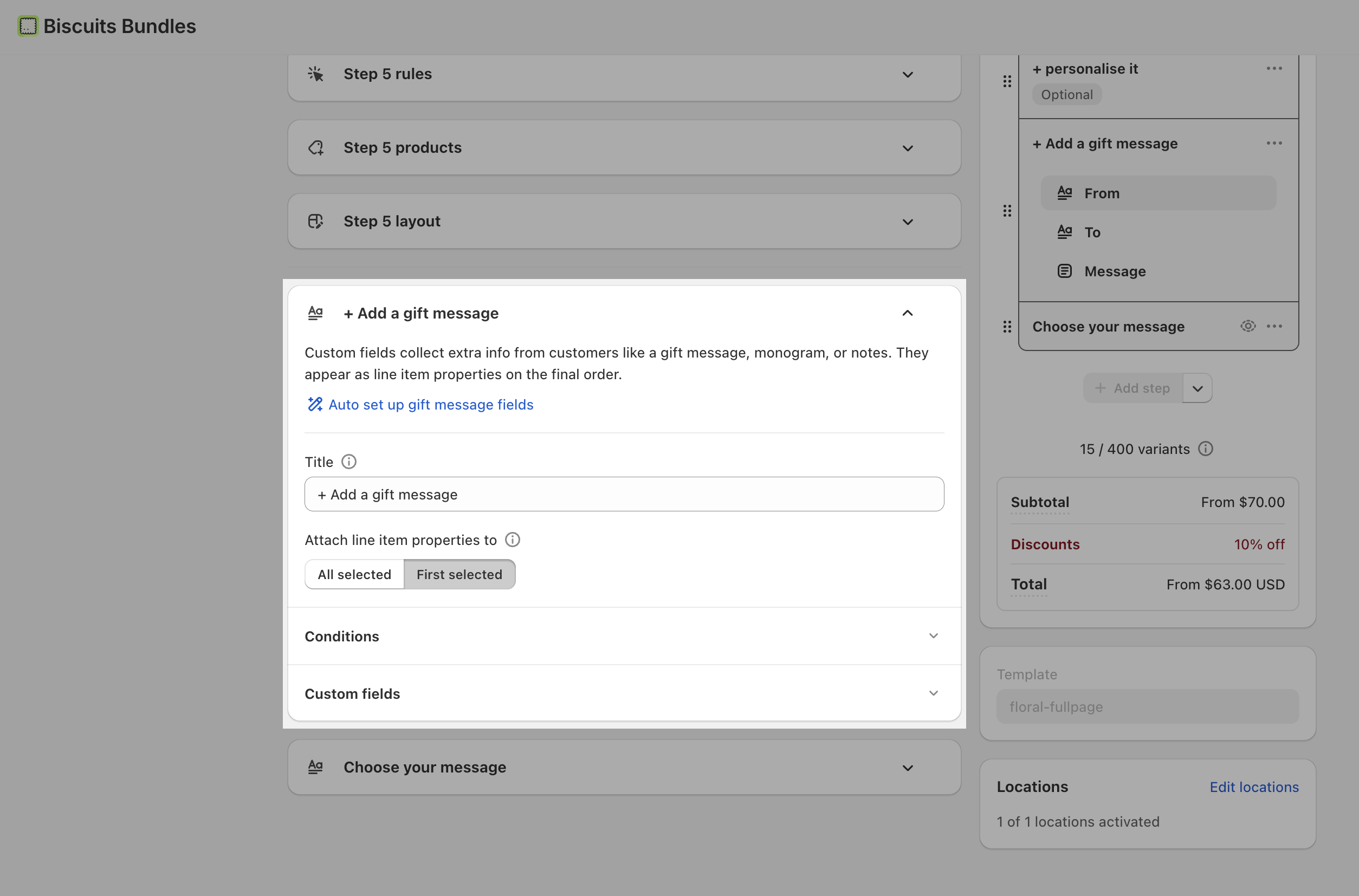
Click a group in the sidebar to open its settings on the right.
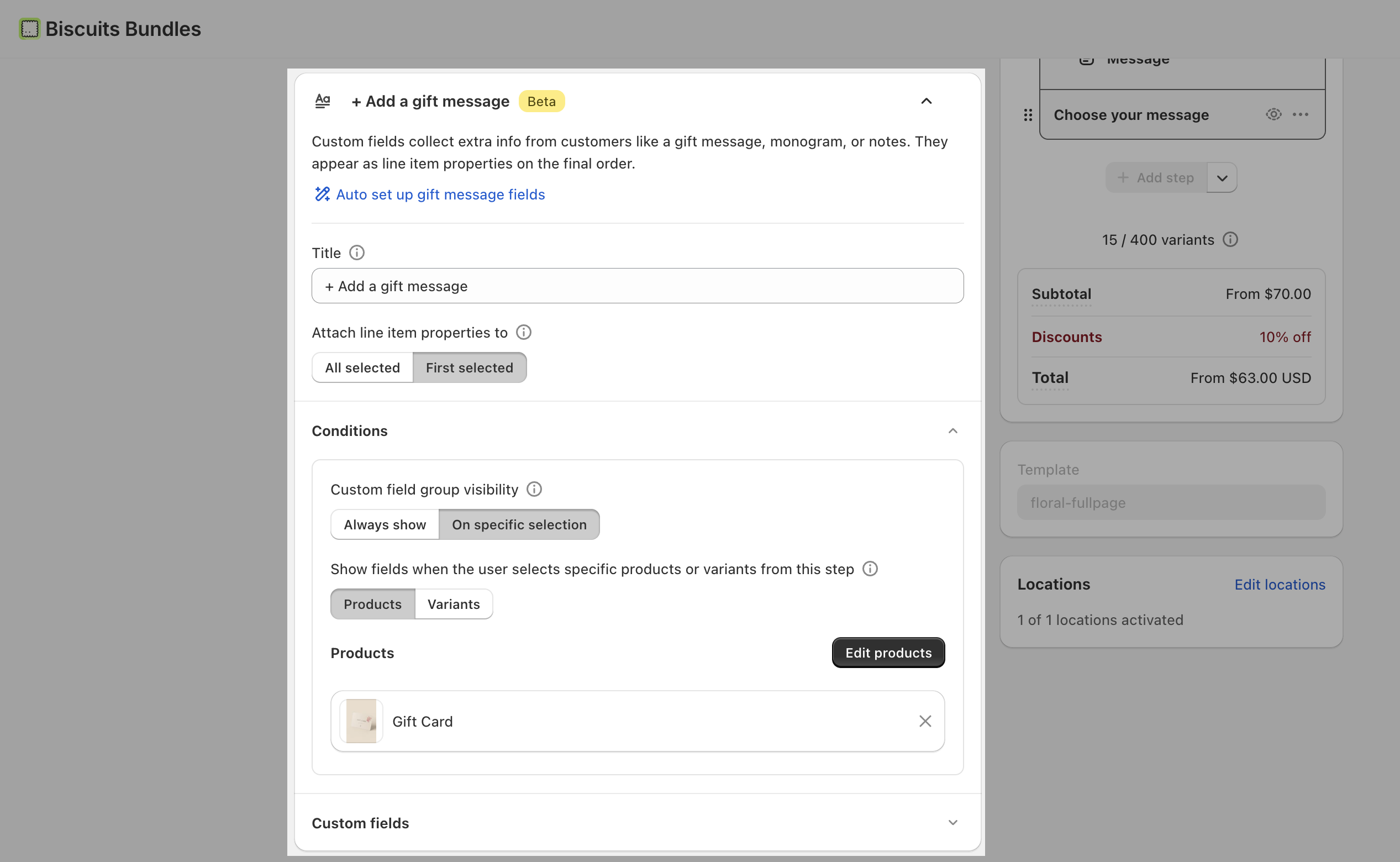
An optional heading shown above the fields on your storefront. Leave it blank to hide the title. Maximum 100 characters.
Choose which of the step's products receive the customer's answers:
All selected - the answers are attached to every product the customer picks in this step.
First selected - the answers are attached only to the first product the customer picks.
Under Conditions, choose when the group appears:
Always show - the fields are always visible in the step.
On specific selection - the fields only appear when the customer selects specific products or variants in that step. You then choose which products or variants reveal the group.
ℹ "On specific selection" is available on the Advanced plan. If you see a lock icon, upgrade to the Advanced plan to use conditional fields.
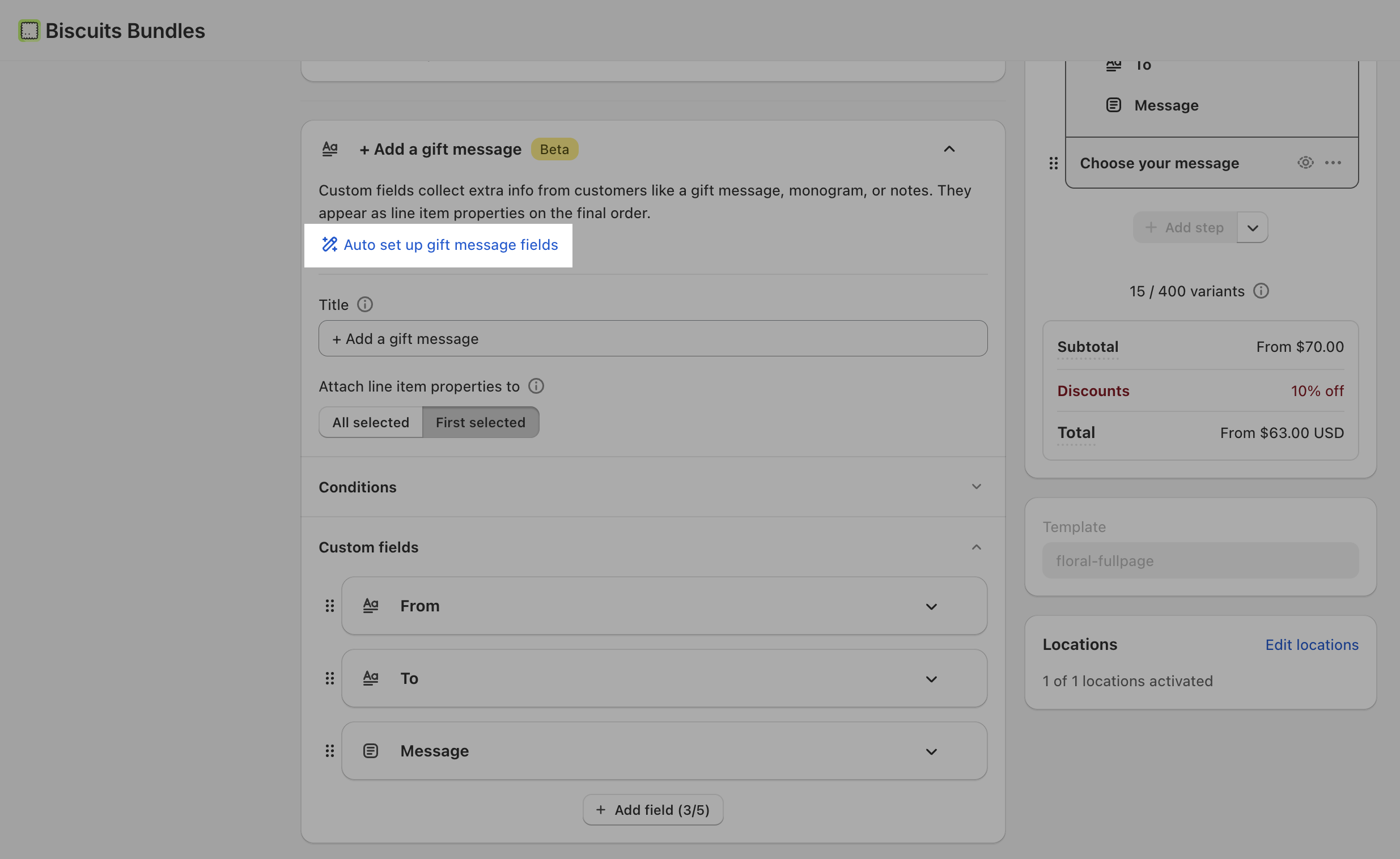
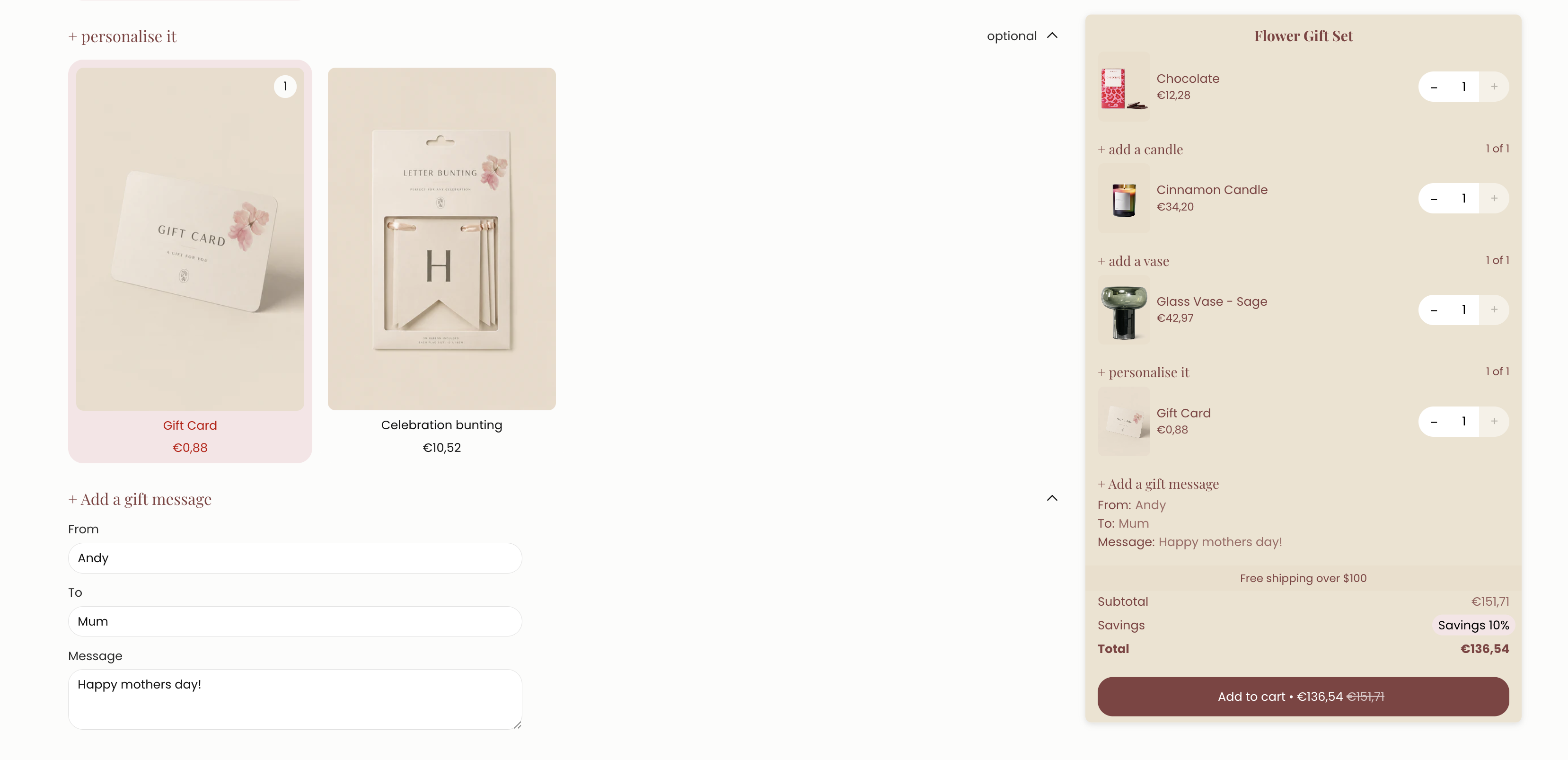
At the top of a group's settings, click Auto set up gift message fields to instantly replace the group's fields with three ready-made fields - From, To, and Message - and set the group title. This is the fastest way to add a standard gift message to a bundle.
Inside a group, click Add field to add another input (up to 5 per group). Click a field to edit it.
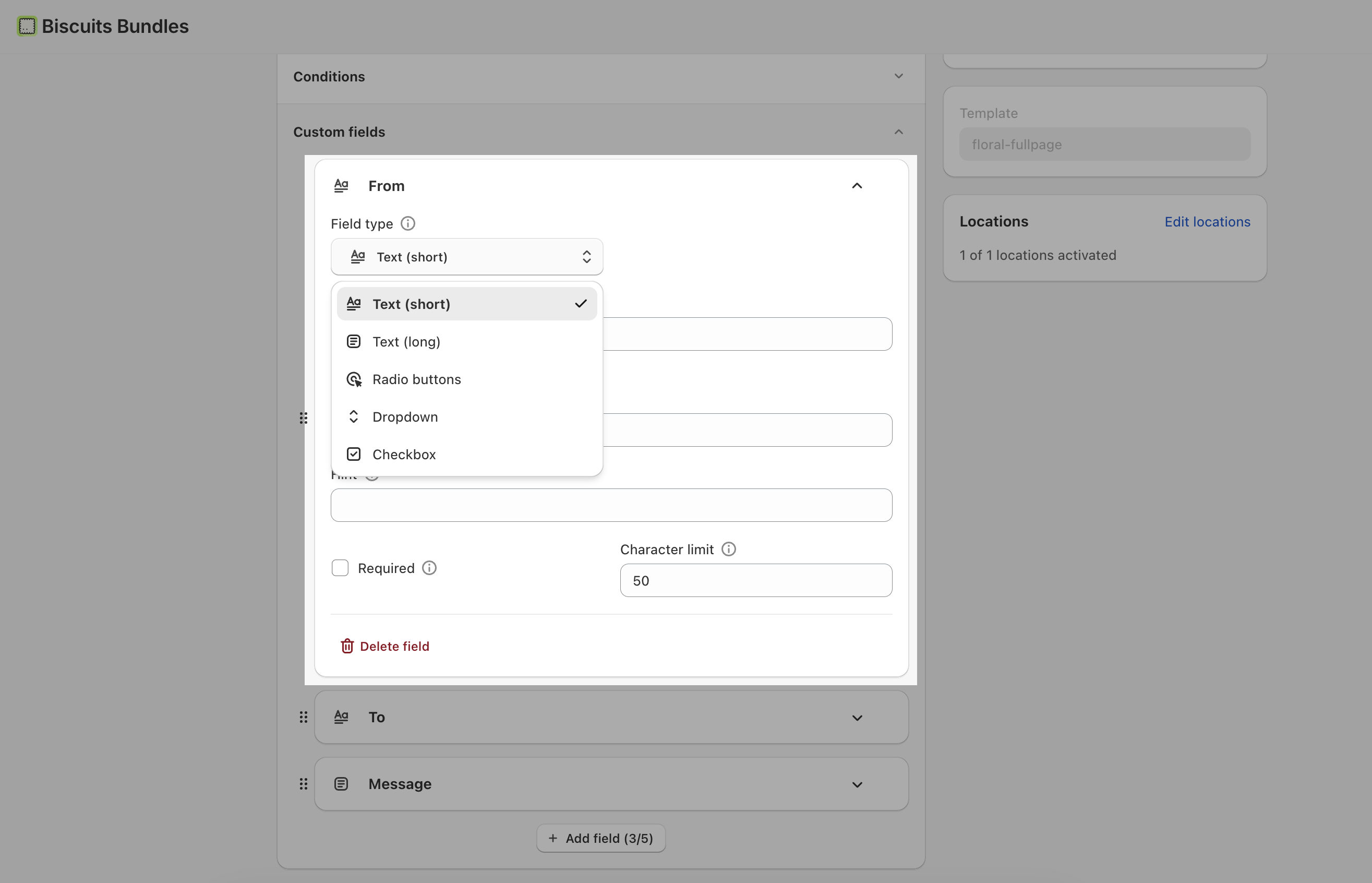
Choose how the field behaves:
Text (short) - a single-line box. Good for names, monograms, or short notes.
Text (long) - a multi-line box for paragraphs or longer messages.
Radio buttons - a visible list of options where the customer picks exactly one.
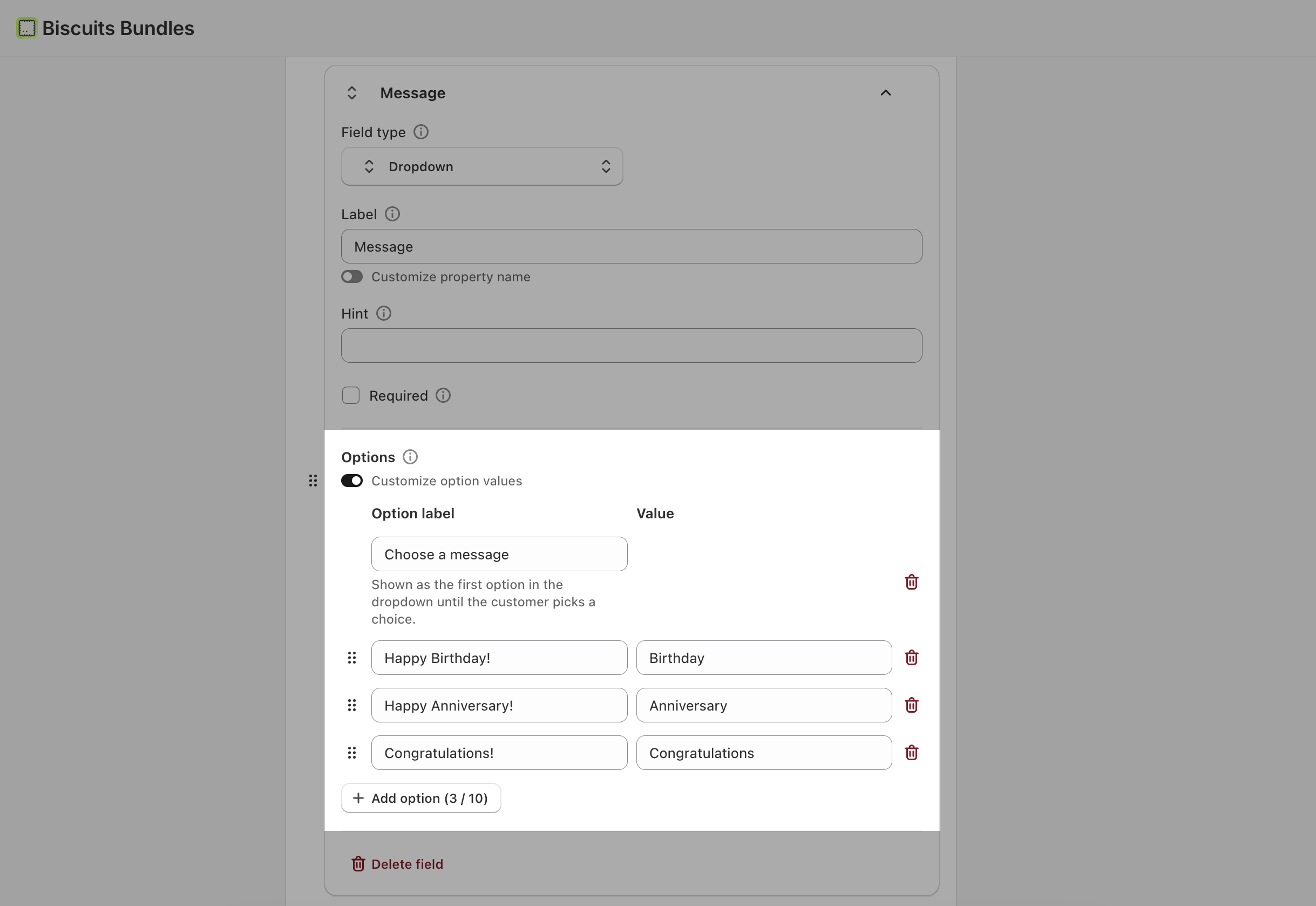
Dropdown - a menu where the customer picks one option.
Checkbox - a single on/off toggle, or, if you add two or more options, a multiple-choice list (the chosen values are saved separated by commas).
ℹ Changing a field's type may update its suggested label and clear its options.
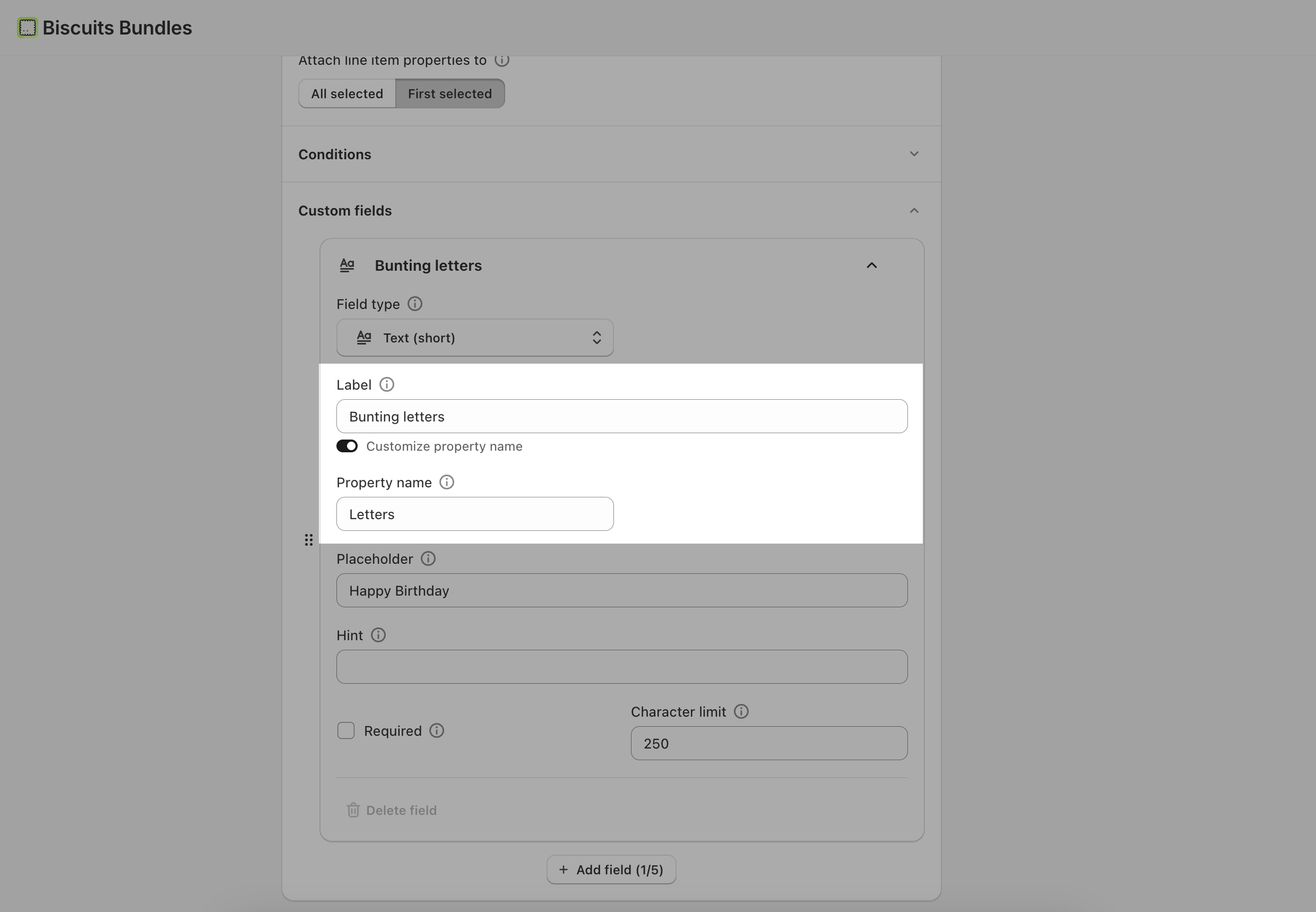
The title shown above the field on your storefront. Maximum 80 characters. Required.
The key the customer's answer is saved under on the Shopify order line item. It defaults to match the Label, but you can customise it. Maximum 80 characters.
Each property name must be unique within the bundle.
Keep property names stable after you launch - changing them changes how answers appear on new orders.
Optional example text shown inside text fields until the customer types. For a Dropdown, this is the prompt shown as the first menu option (for example "Select an option"). Maximum 80 characters.
Optional helper text shown near the field to give the customer guidance. Maximum 200 characters.
When turned on, the customer must complete this field before they can add the bundle to their cart.
For Text (short) and Text (long), set the maximum number of characters a customer can enter. Default is 250, maximum is 500.
For radio, dropdown, and multiple-choice checkbox fields, use the options editor to manage the choices:
Add at least two options (radio and dropdown). You can add up to 10.
Drag the handle to reorder options.
By default each option's saved value matches its label. Turn on Customize option values if you want the value saved to the order to differ from what the customer sees.
For a Dropdown, you can set the prompt row (for example "Select an option") shown before the customer picks.
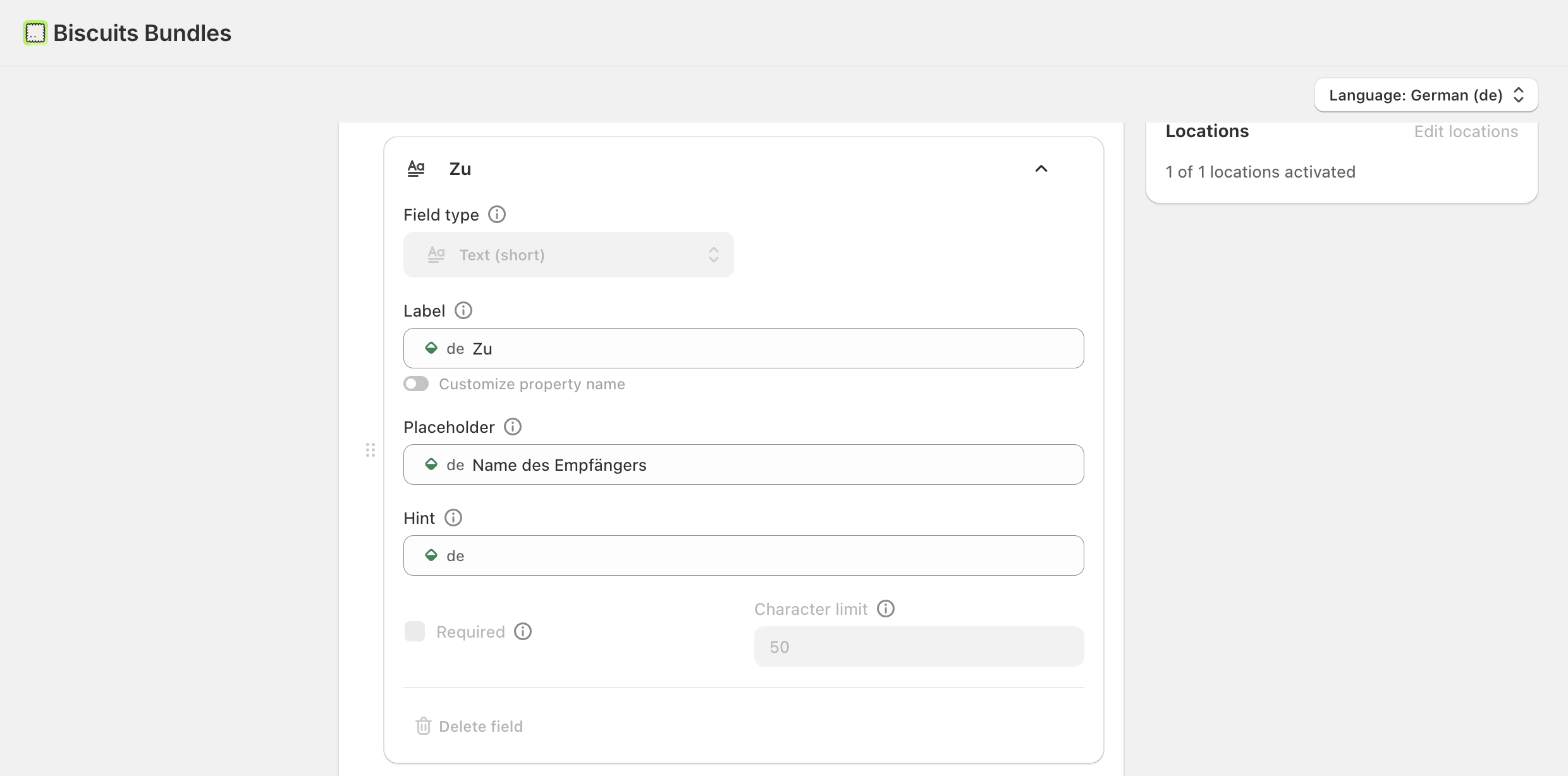
If your store sells in more than one language, your custom fields can be translated so each customer sees the right wording.
Set up your fields in your base (default) language first - this is where you choose field types, add or remove options, and set property names.
Switch to another language using your store's language selector in the bundle builder. While viewing a non-base language, you can override the customer-facing text:
the group Title
each field's Label, Placeholder, and Hint
the Label of each option in radio, dropdown, and checkbox fields
ℹ Field types, the number of options, and property names are shared across all languages and can only be changed in your base language. Translations only change the wording your customers see - the values saved to the order stay the same.
If you do not provide a translation for a particular language, the field falls back to your base language text.
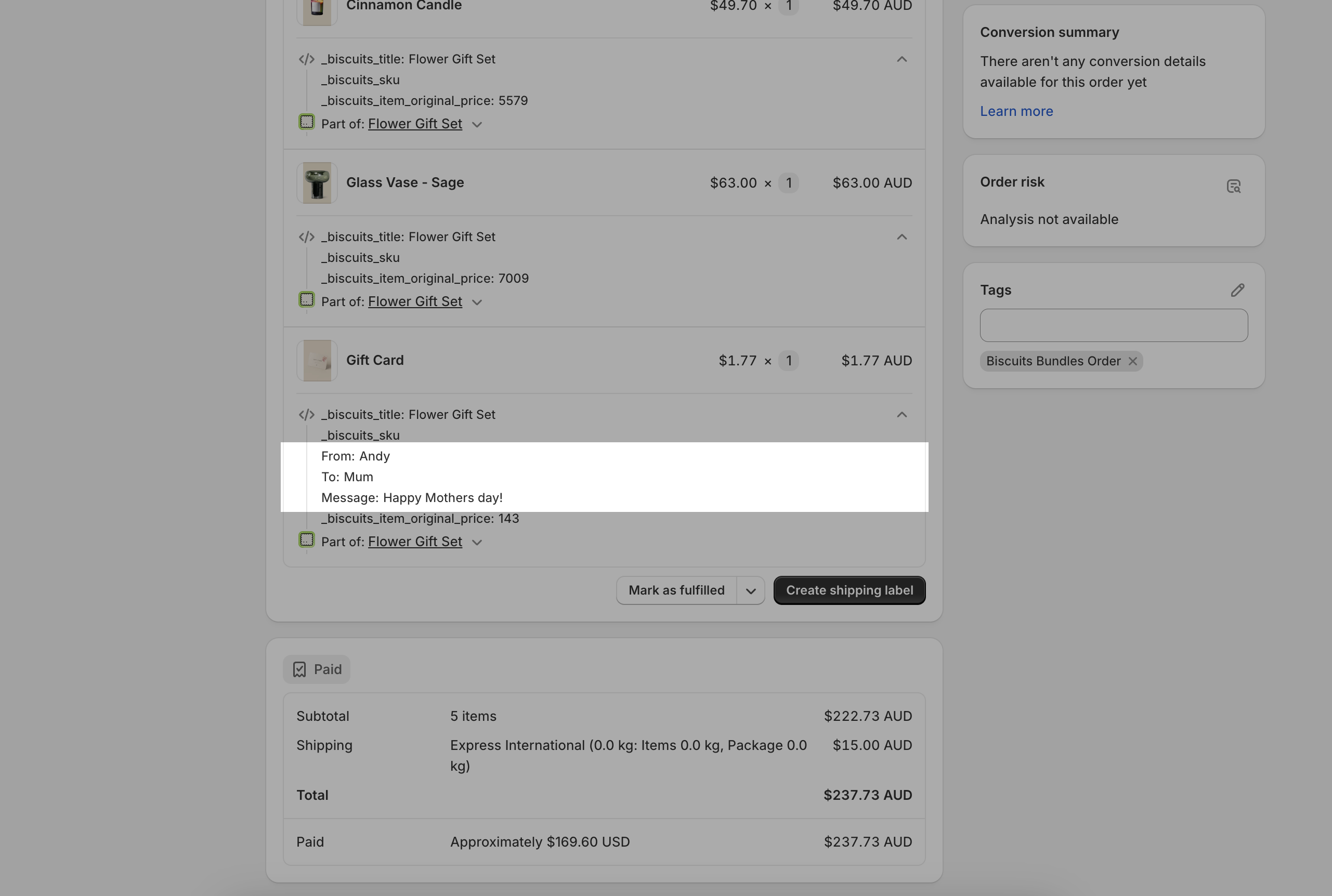
When a customer completes your custom fields and places an order, their answers are saved as line item properties on the matching products in the order. You will see them on the order in Shopify admin, and they flow through to order confirmations and your fulfilment tools.
Which products carry the answers depends on the group's Attach line item properties to setting (all selected products, or just the first).
1 custom field group per bundle on the Standard plan (more available on the Advanced plan).
Up to 5 fields per group.
Up to 10 options per radio, dropdown, or checkbox field.
Character limits: Title 100, Label 80, Property name 80, Placeholder 80, Hint 200.
Text input length: up to 500 characters (default 250).
I can't add another custom field group
The Basic plan includes one custom field group per bundle. If the Add a custom field group option is disabled, you have reached your limit - upgrade to the Standard or Advanced plan to add more.
The "On specific selection" option is locked
Conditional visibility (showing fields only when a customer picks certain products or variants) is available on the Standard or Advanced plan. Upgrade to use it; otherwise set the group to Always show.
My customers can't add the bundle to cart
Check whether one of your fields is set to Required. Required fields must be completed before the bundle can be added to the cart. The customer will see your field's label in the error message.
I changed a property name and old orders look different
Property names are the keys your answers are saved under. Change them before you launch and keep them stable afterwards, so order data stays consistent over time.
My answers are on the wrong product
Check the group's Attach line item properties to setting. "All selected" puts the answers on every product the customer picks in that step; "First selected" puts them only on the first.