---
title: "GUIDE: Toggle Step - Make your step behave like a toggle"
description: "A Custom JS snippet you can use to make your selections behave like radio buttons."
url: https://help.biscuitsbundles.com/en/articles/9045775-guide-toggle-step-make-your-step-behave-like-a-toggle
collection: "Customisation Guides"
updated: 2026-03-31
language: en
---
# GUIDE: Toggle Step - Make your step behave like a toggle
A Custom JS snippet you can use to make your selections behave like radio buttons.
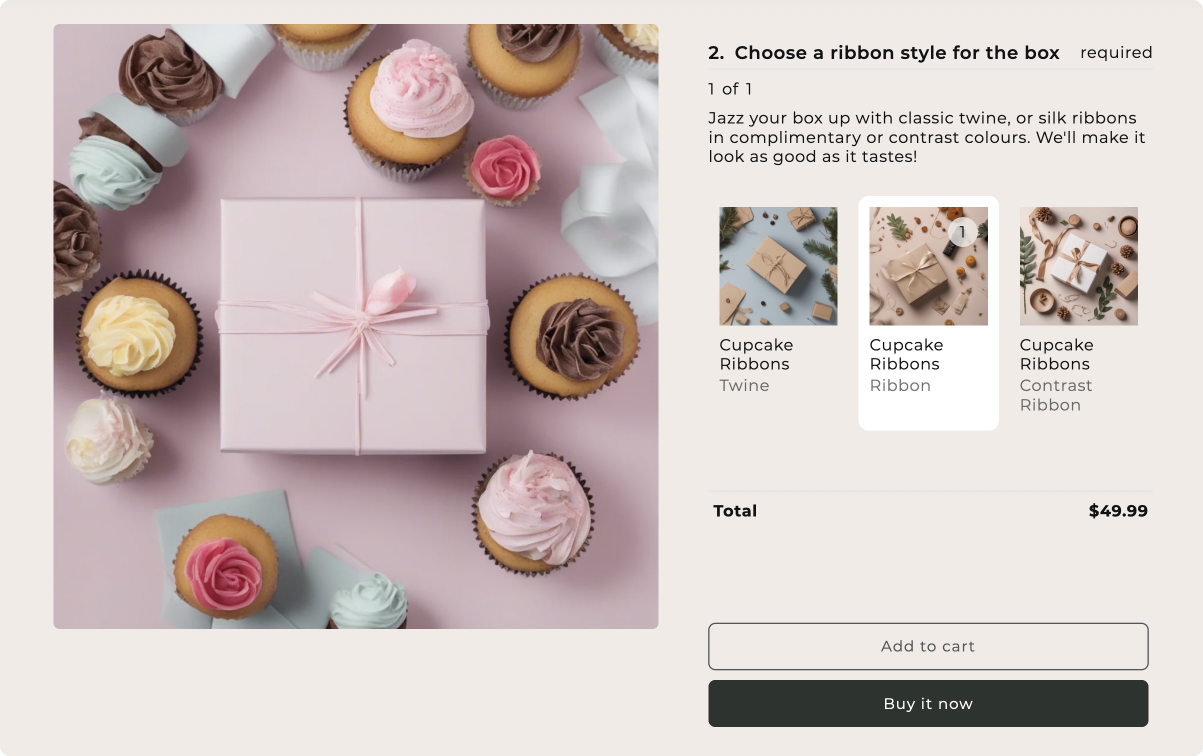
_Biscuits Bundles frontend UI displaying a toggle step_
* * *
# Customisation Guide
In this guide we will customise Biscuits Bundles App to act more like a single select radio button instead of the default allowing users to pick multiple options at once (similar to checkbox groups).
This means when the user chooses a new option, it automatically unselects the previous option.
**What this custom code will:**
- Create data to dictate which step act as a toggle step
- Update custom JS in theme block to include toggleStepProducts to ensure only 1 product is selected in the toggle step
* * *
## Terminology
For this customisation we will be using the following terminology:
In our example above the **Ribbon style step** (Step 2) is our "Toggle Step",
Toggle Step
The step which will behave as a toggle (radio button)
**App block settings are template specific.**
If you have multiple bundles and you need to set different Custom JS on each bundle, you will need to create a product template for each bundle.
* * *
# 1\. Configure in Biscuits Bundle App
To have our bundle setup correctly for this customisation you will need to make sure your bundle step matches the following settings.
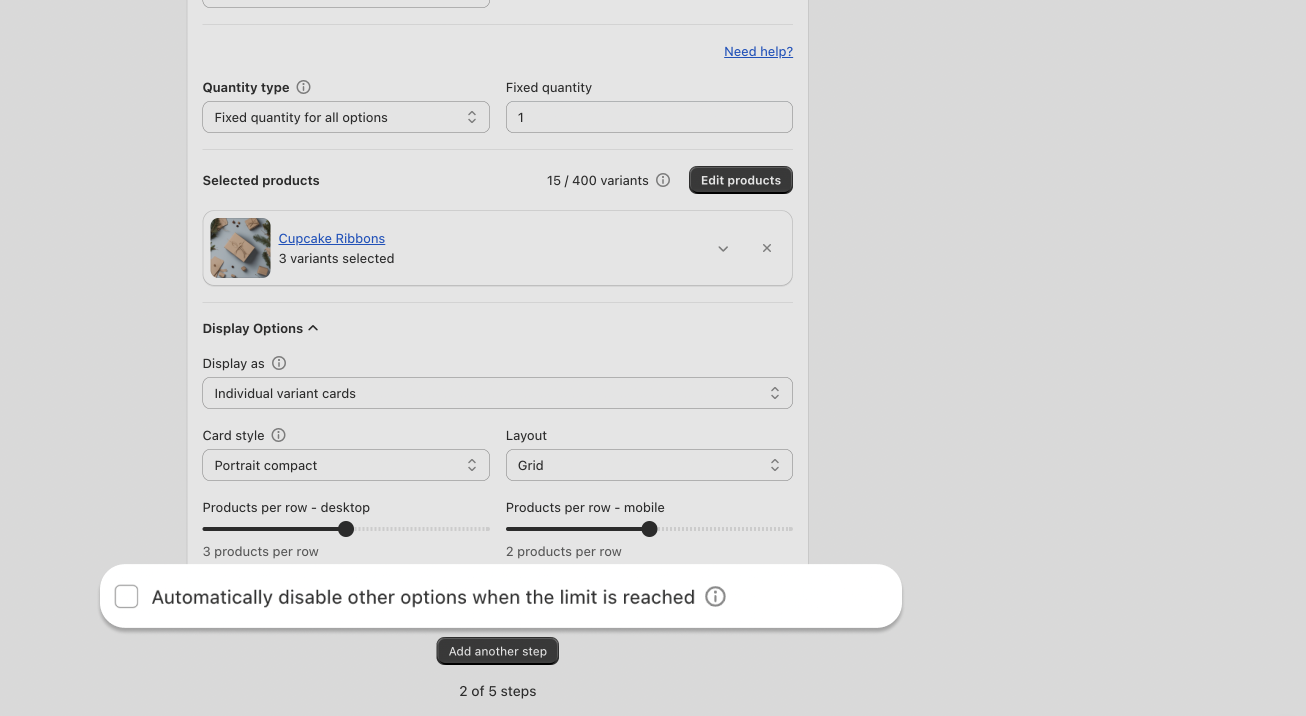
1. The Toggle Step must have **"Auto Disable"** feature turned off. You can find this under **Display Options**
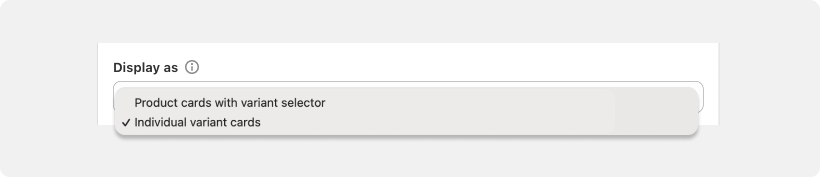
2\. The Toggle Step must be set to **variant cards**.
* * *
# 2\. Add the Custom JS
## Customise the custom codes data
- Set StepNumbers to the step number we want the toggle effect on (Step 2)
Key
Description
Value Example
StepNumbers
Array of step numbers
[1,2]
`stepNumbers` takes an array so you can target any number of steps.
To make just Step 2 a toggle, you would use:
`let stepNumbers = [2];`
To make Steps 3 and 4 a toggle, you would use:
`let stepNumbers = [3,4];`
**CUSTOM JS CODE**
```javascript
document.addEventListener('BiscuitsBundleStep:ready', (event) => {
let stepNumbers = [2];
toggleStepProducts(stepNumbers);
function toggleStepProducts(stepNumbers){
if (!stepNumbers){
return;
}
stepNumbers.forEach(function(stepNumber){
let step = document.querySelector('[data-biscuits-step="'+ stepNumber+'"');
if (step.dataset.biscuitsSelection != 's'){
return;
}
let productItems = step.querySelectorAll('.biscuits-bundle-item');
productItems.forEach(function(productItem){
productItem.addEventListener('biscuits--product-selection', function(event){
if (event.detail.active){
let alreadySelectedItems = step.querySelectorAll('.biscuits-bundle-item.biscuits--active');
alreadySelectedItems.forEach(function(selectedItem){
if (selectedItem != productItem){
selectedItem.click();
}
});
}
});
});
});
}
});
```
**Paste your edited code into the custom JS field in the biscuits bundle app block**
- If you need help finding where this is follow this guide.
[How to edit Custom JS ›](https://help.biscuitsbundles.com/en/articles/9310206-how-to-edit-custom-js.md)
* * *
# Testing
Always thoroughly test your custom JS and CSS to ensure it behaves as expected across all supported browsers and devices.
**Could not display content**