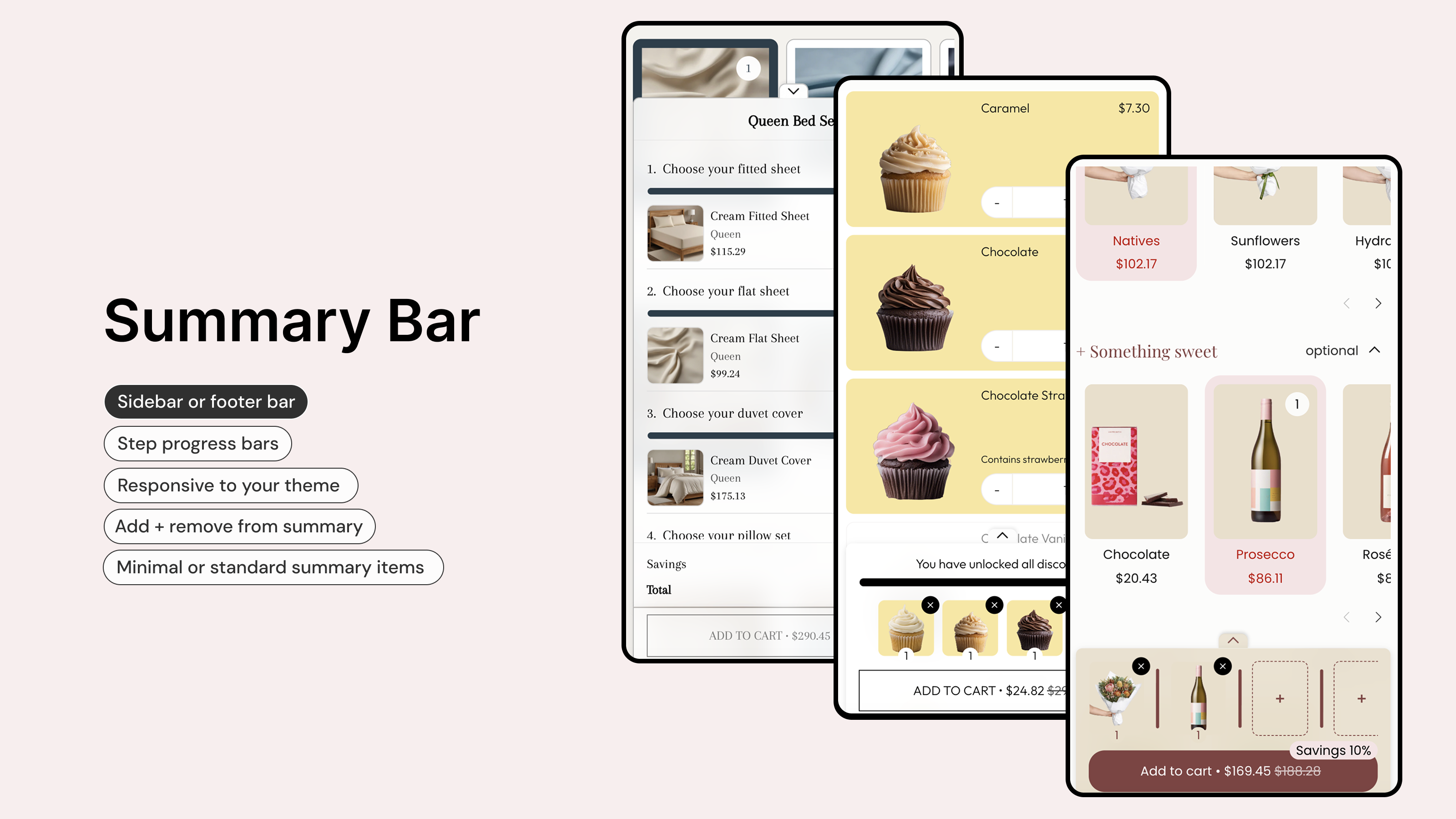
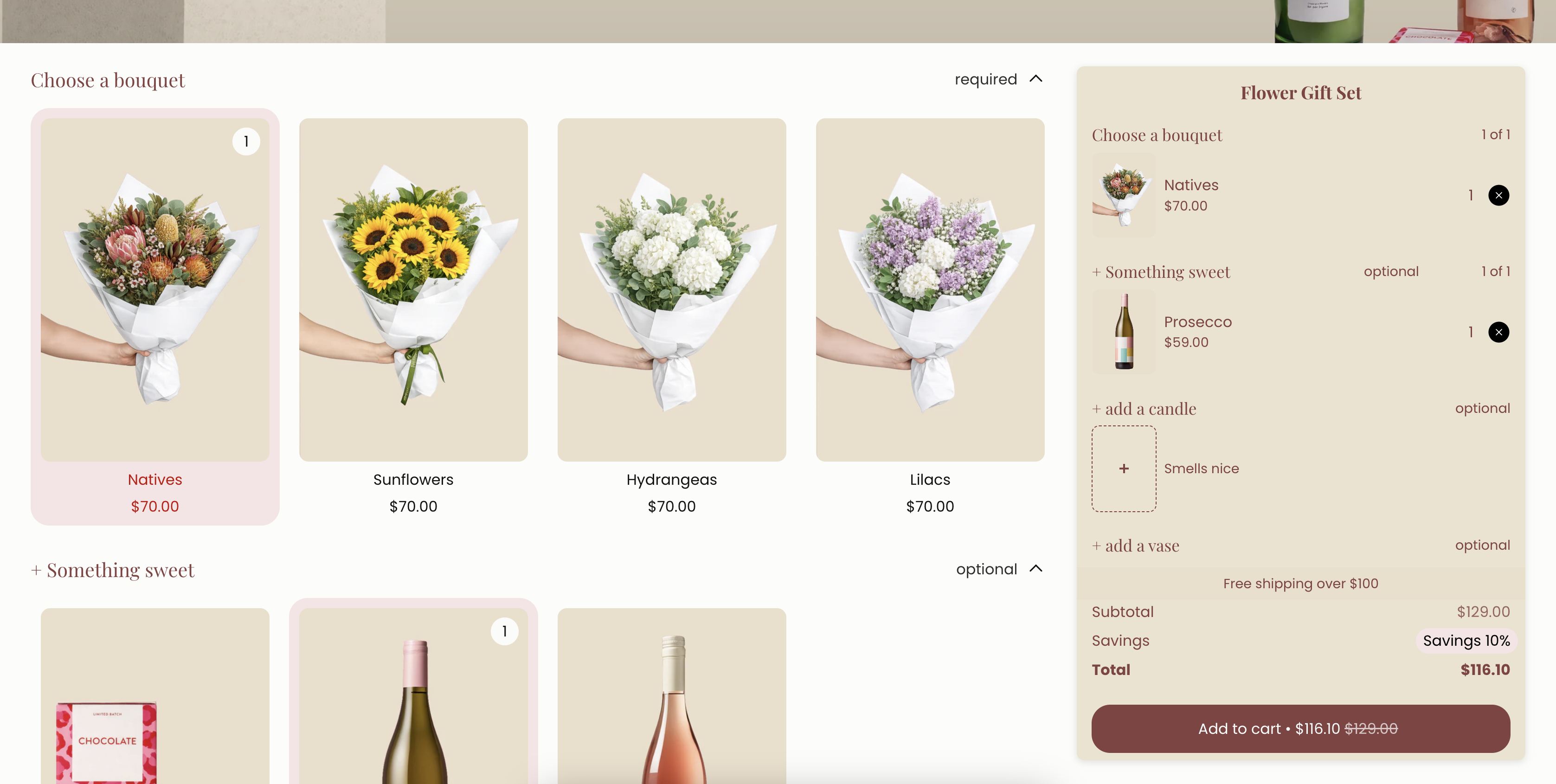
The Summary bar gives your customers a live overview of their bundle as they build it. It shows selected products, quantities, pricing, and an add to cart button - all in one place.
You can display the Summary bar as a sidebar next to the bundle form, or as a footer bar fixed to the bottom of the page. It updates automatically as customers make their selections.
The Summary bar is available on Standard and Advanced plans.
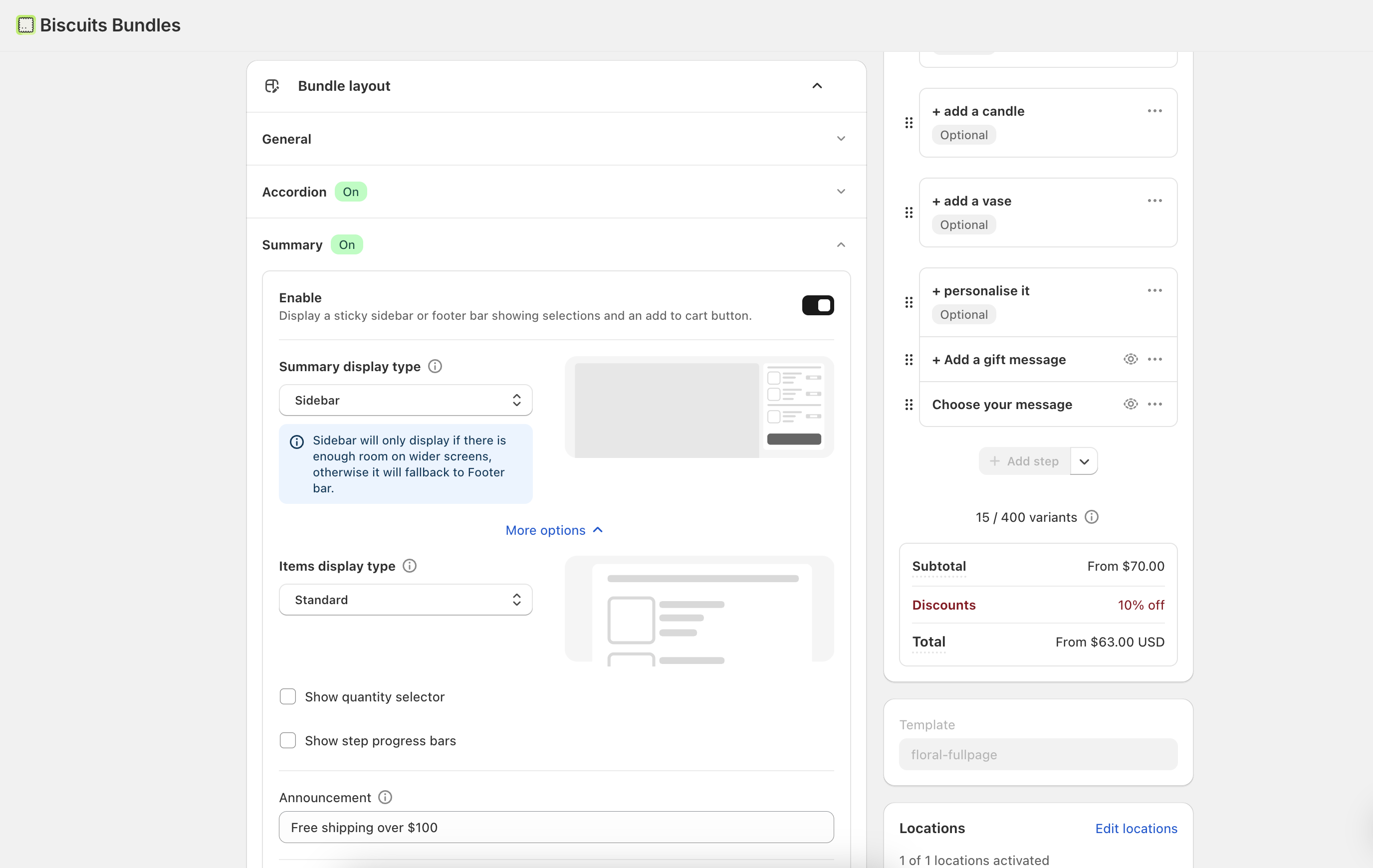
Open a bundle in the Biscuits Bundles app.
Go to the Bundle Layout tab.
Scroll to the Summary section.
Toggle Enable to turn it on.
When enabled, a sticky sidebar or footer bar will appear on your bundle's product page showing your customer's selections and an add to cart button.
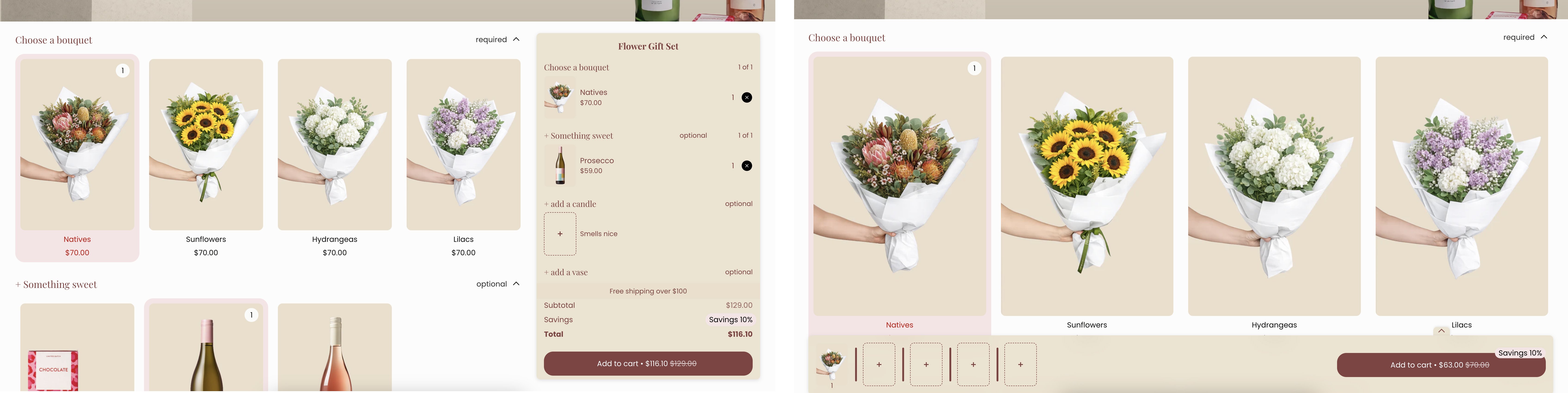
Under Summary display type, choose how the Summary bar appears on the page:
Sidebar — A sidebar that sits alongside the bundle form.
ℹ On screens smaller than 800px, it automatically switches to a footer bar.
Footer bar — A bar fixed to the bottom of the page. Works on all screen sizes.
Click More options to access additional settings.
Choose how selected products appear inside the Summary bar:
Standard — Shows full item details including the product image and title. When this option is selected, you can also enable Show quantity selector to let customers adjust quantities directly from the Summary bar.
Simple — Shows a compact grid of product thumbnails.
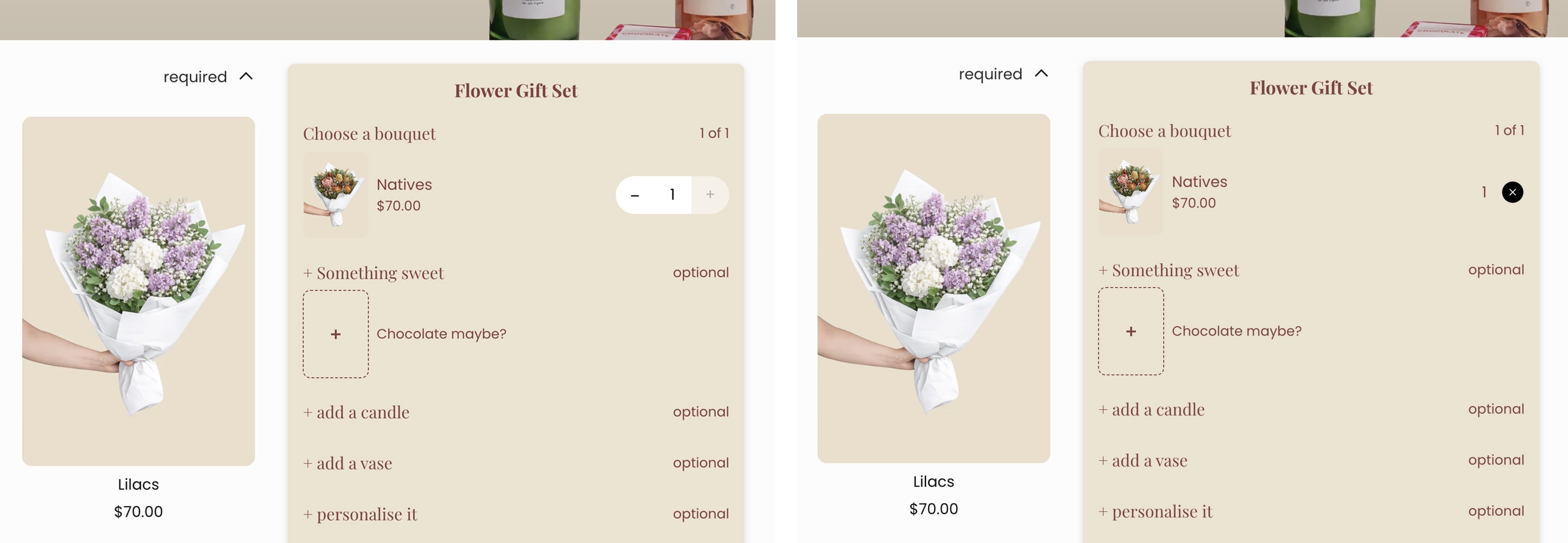
Add a short message that appears inside the Summary bar. Use this to highlight shipping info, promotions, or other helpful details.
Maximum 100 characters.
Example: Same day shipping for orders before 3pm
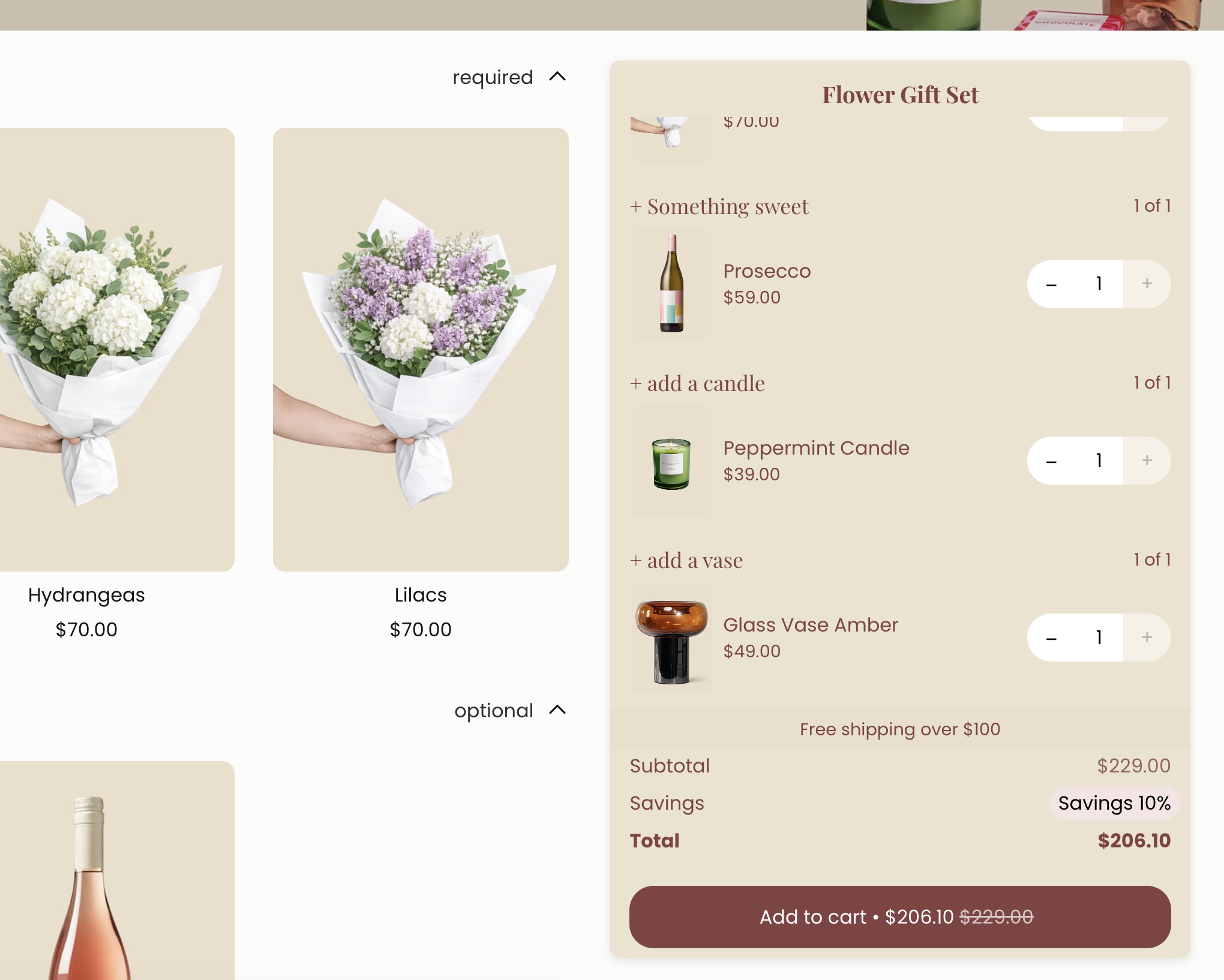
When your bundle has a discount, a badge can appear near the add to cart button showing how much the customer saves.
Maximum 60 characters.
Use {{saving_amount}} to show the dollar amount saved.
Use {{percentage_discount}} to show the percentage saved.
If you leave this blank, it defaults to Savings {{percentage_discount}} for percentage discounts or Savings {{saving_amount}} for fixed amount discounts.
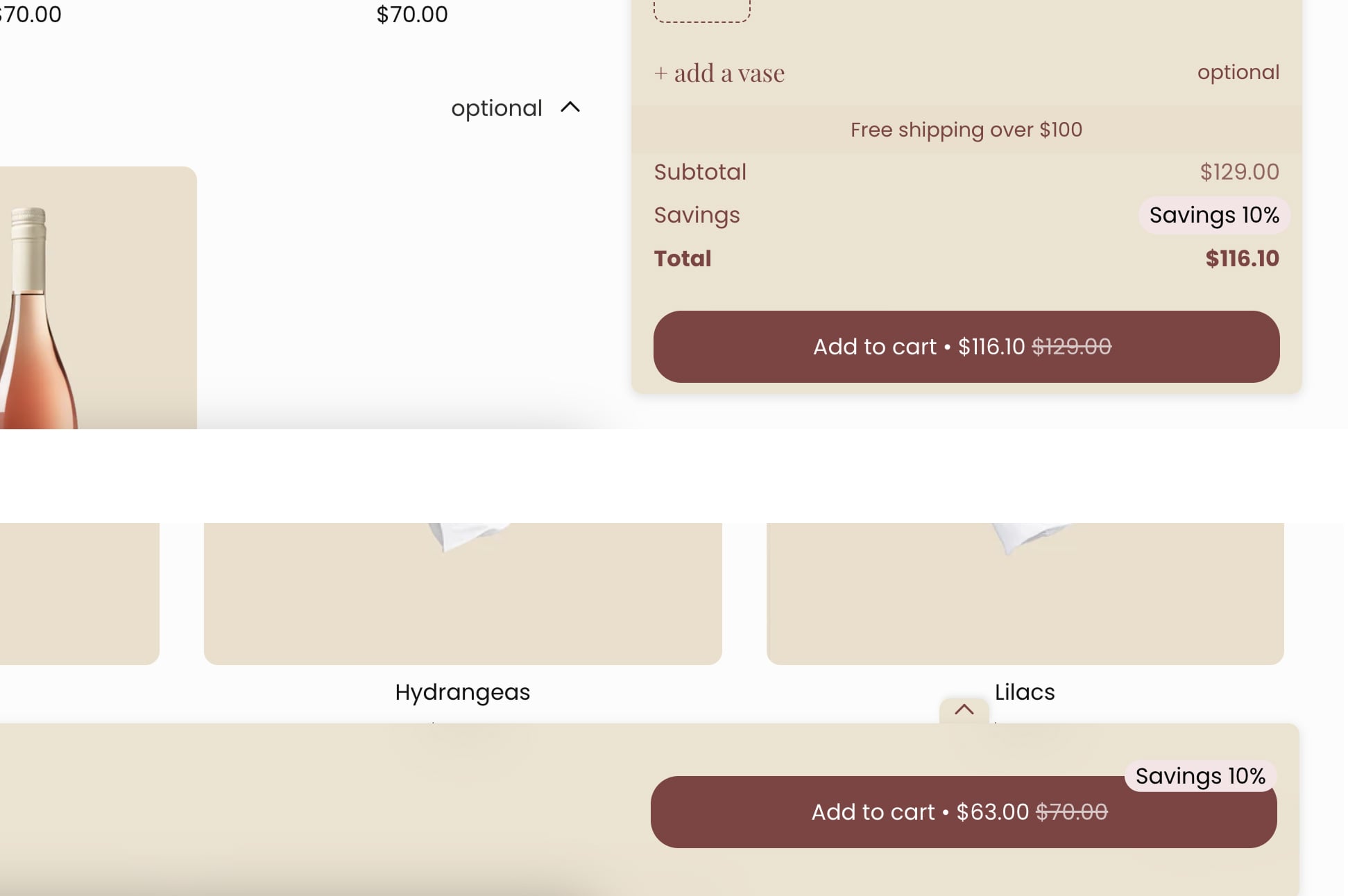
Instead of a quantity selector, you can show an Add to bundle button on each product card. Customers add and remove products with a button, and can add several variants of the same product, each with its own quantity. Turn it on in the Summary section, just beneath Enable.
ℹ Full guide: Add to bundle button
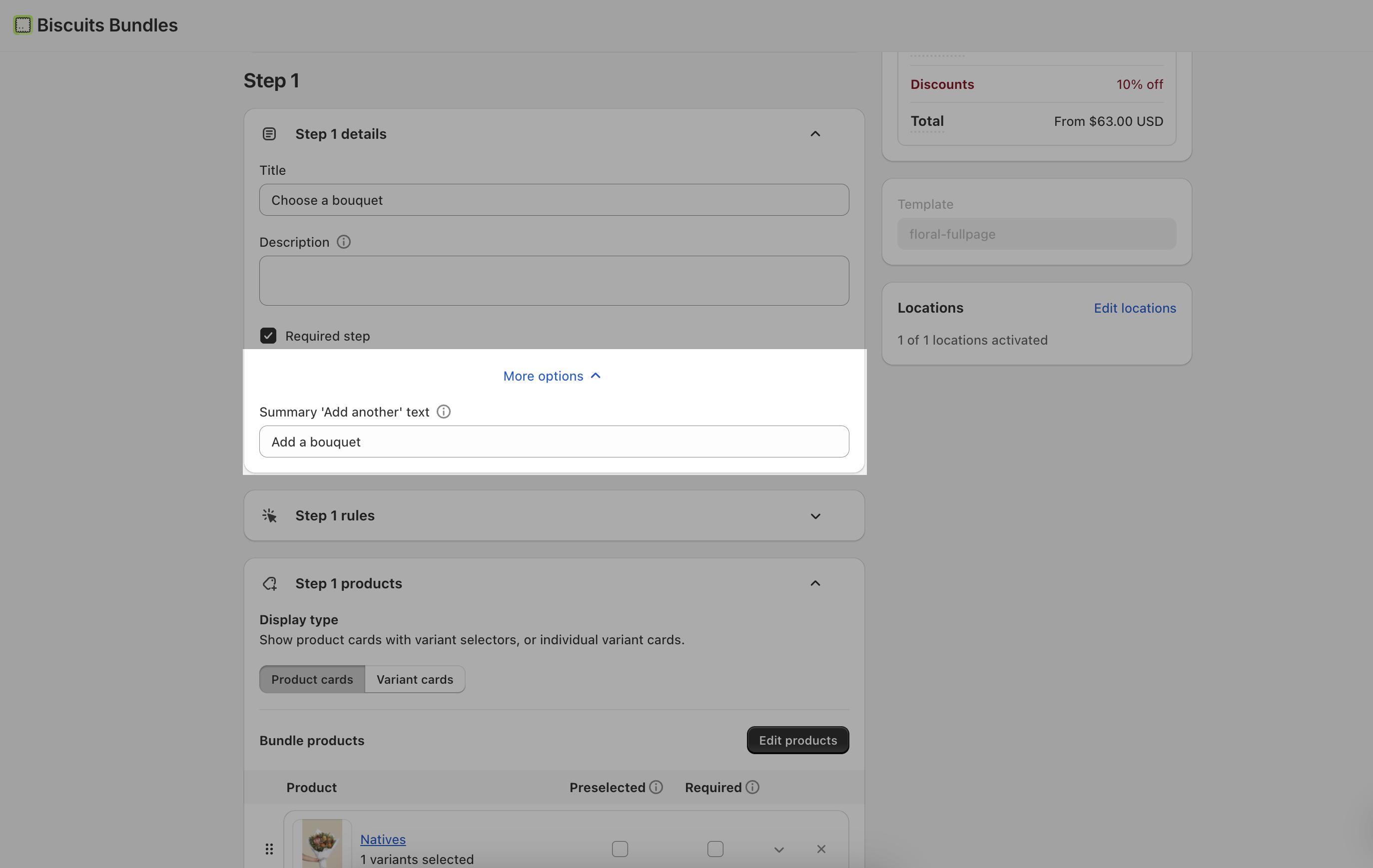
Each step in your bundle has an optional Summary "Add another" button text field. This is the text shown in the Summary bar when a customer can still select more items for that step.
Open a bundle and go to the step you want to edit.
Scroll to the Step Details section.
Find the Summary "Add another" button text field.
Enter your custom text (maximum 30 characters).
This field isn’t required, you may leave it blank and it wont display on the bundle.
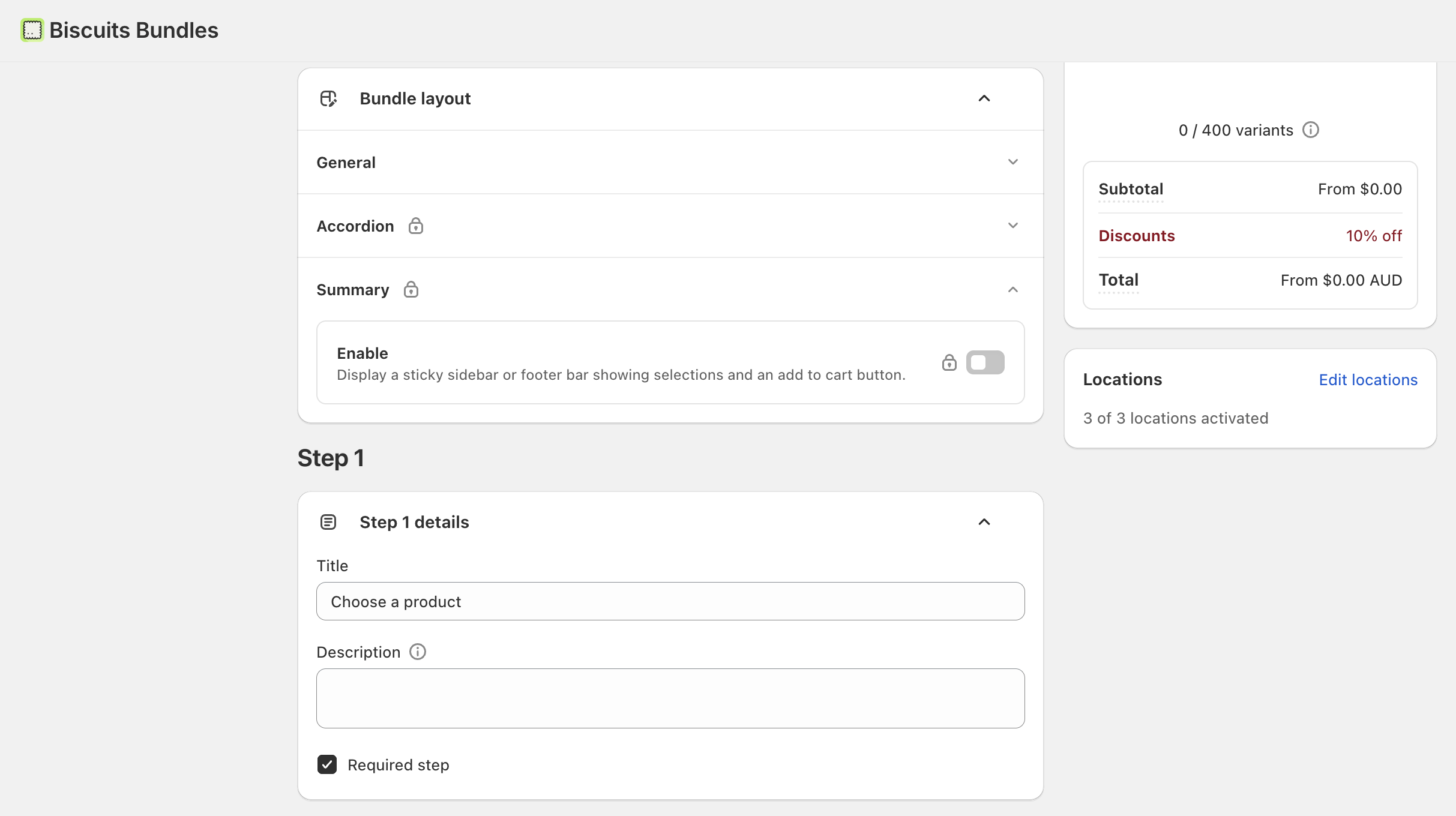
The Summary bar's colours, sizes, and shapes are controlled in your Shopify theme editor, not in the Biscuits Bundles app. This keeps the Summary bar consistent with the rest of your theme.
By default, the summary area will inherit styles from the main Biscuits Bundles App Block, and from your theme.
Using the Summary Area Styles app block will help you customise the look further without code.
Open the Shopify theme editor (Online Store → Themes → Customize).
Navigate to a product page that has a bundle.
Find the Summary Area Styles block under the Biscuits Bundle Builder section.
Click it to open the styling settings.
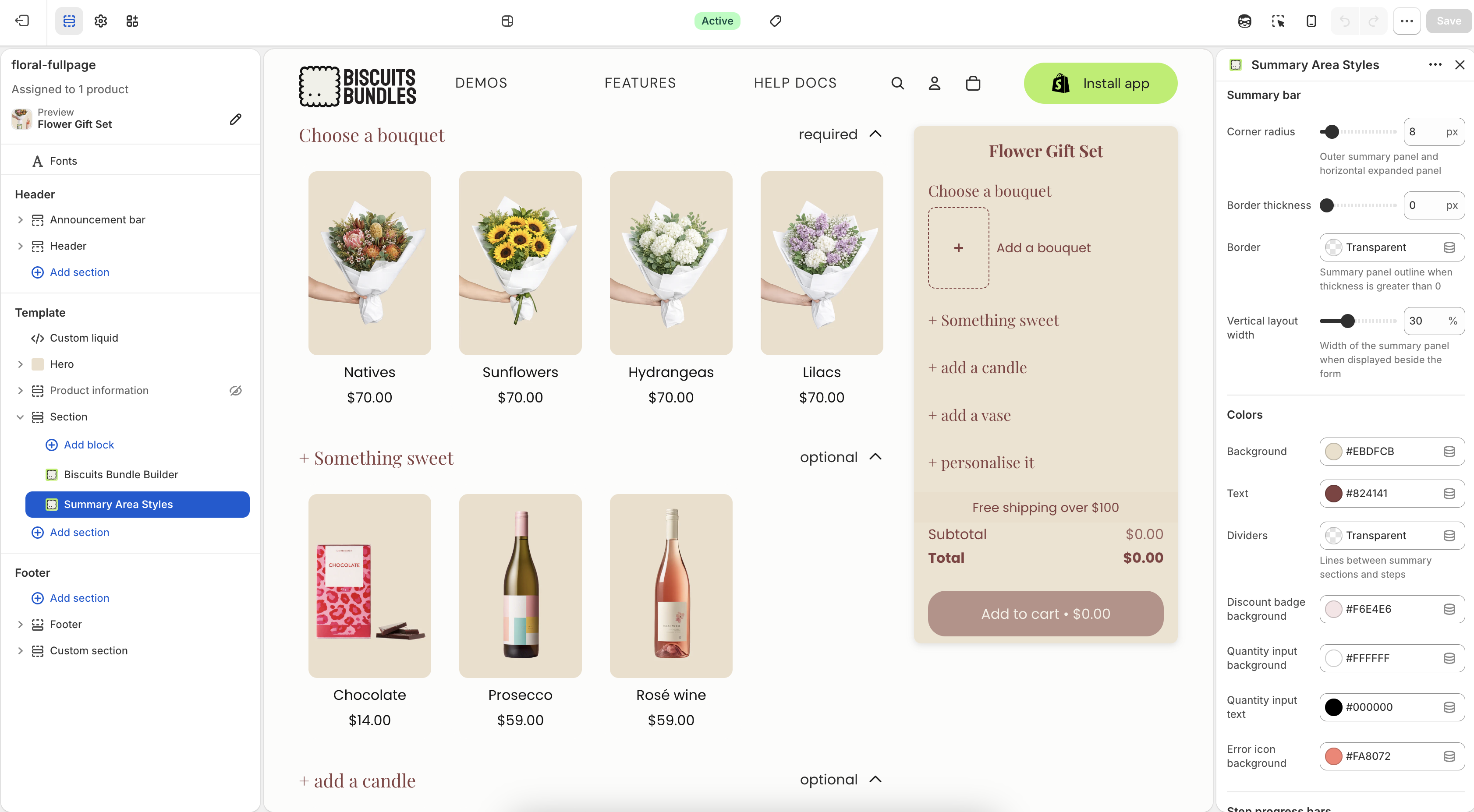
If your bundle uses Volume Discounts with the display type set to Thumbnails, you will see a prompt when enabling the Summary bar.
The Thumbnails volume discount display is not compatible with the Summary bar.
The prompt will ask you to switch the volume discount display to Progress bar. This keeps both features working together.
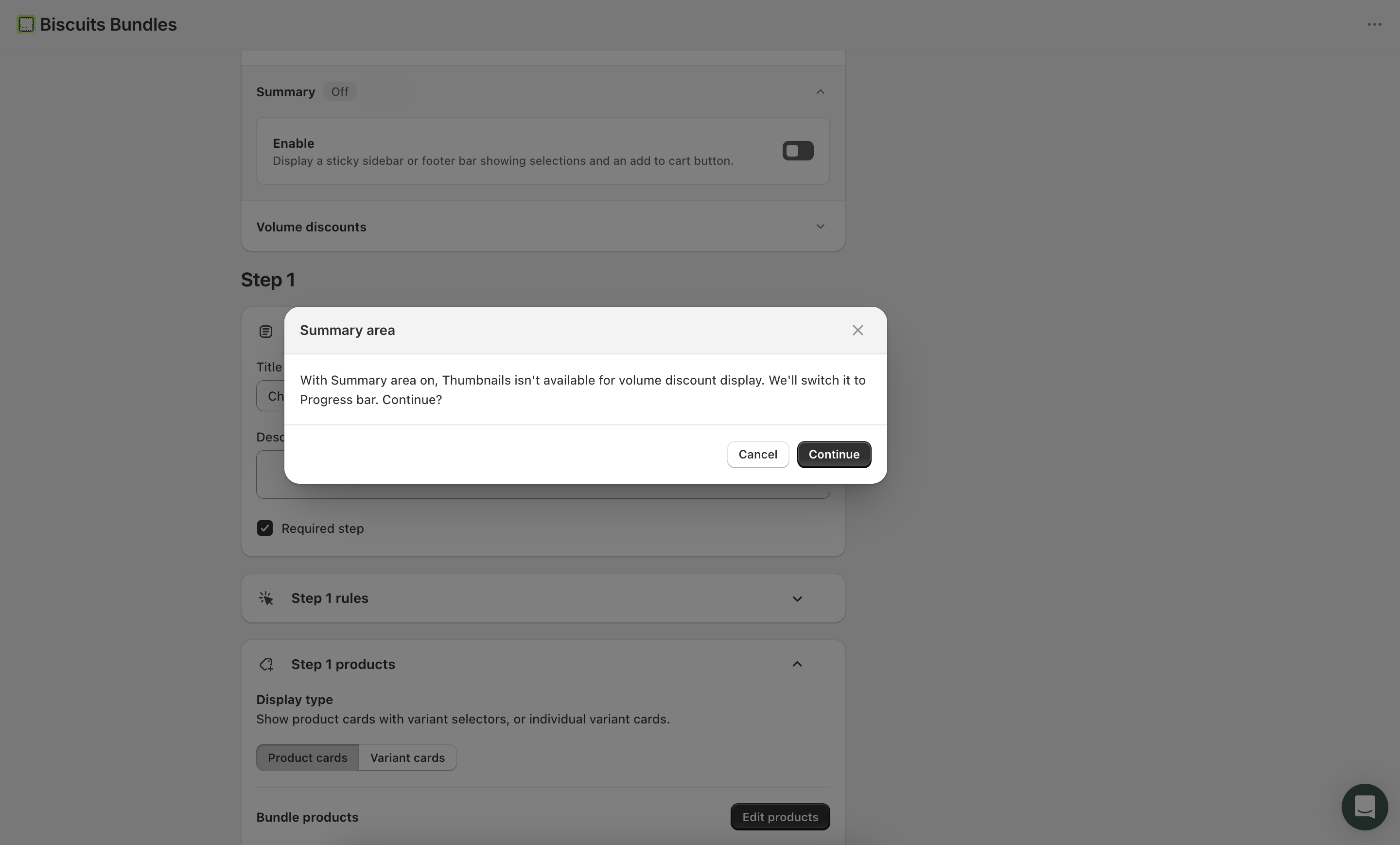
The Summary bar is available on Standard and Advanced plans. If you see a lock icon next to the setting, upgrade your plan to access this feature.
This is expected. When the display type is set to Vertical (sidebar), the Summary bar automatically switches to a horizontal footer bar on screens smaller than 800px wide. This gives your customers more room to browse products on smaller screens.
If you have previously added custom CSS to your bundle form, it may affect the Summary bar layout. Try adjusting or removing conflicting styles. You can also use the Custom CSS field in the Summary Area Styles theme block to target the Summary bar specifically.
The discount badge only appears when your bundle has an active discount. Make sure your bundle has a discount type set and that the customer's selections qualify for the discount.