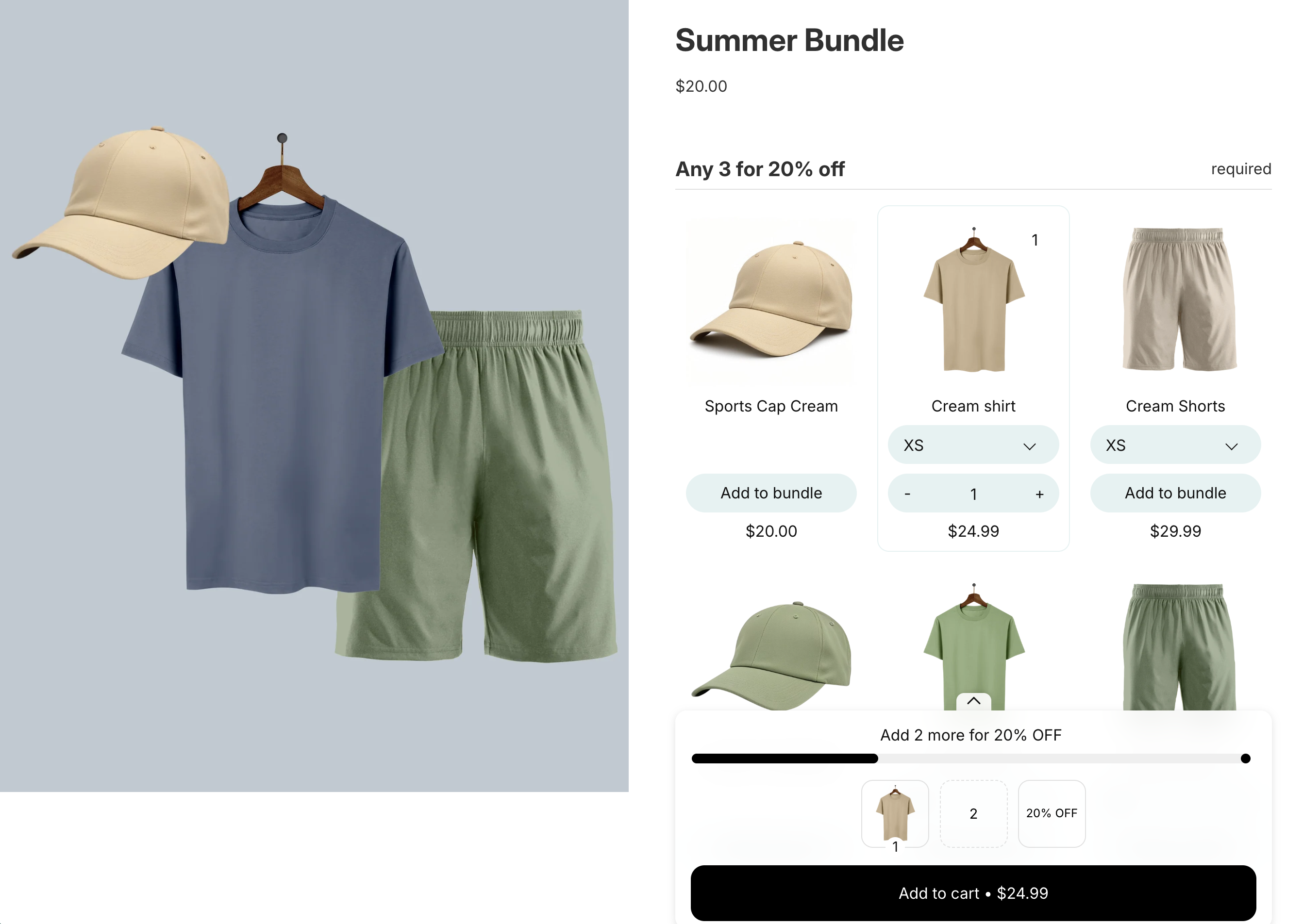
The Add to bundle button changes how customers build a bundle. Instead of setting a quantity on every product card, each card shows an Add to bundle button. When a customer adds a product, the button switches to Remove, so it is always clear what is in the bundle and what is not.
Customers can also add several variants of the same product, each with its own quantity. Someone building a tshirt bundle could add two green variants and one red variant, all from the same product.
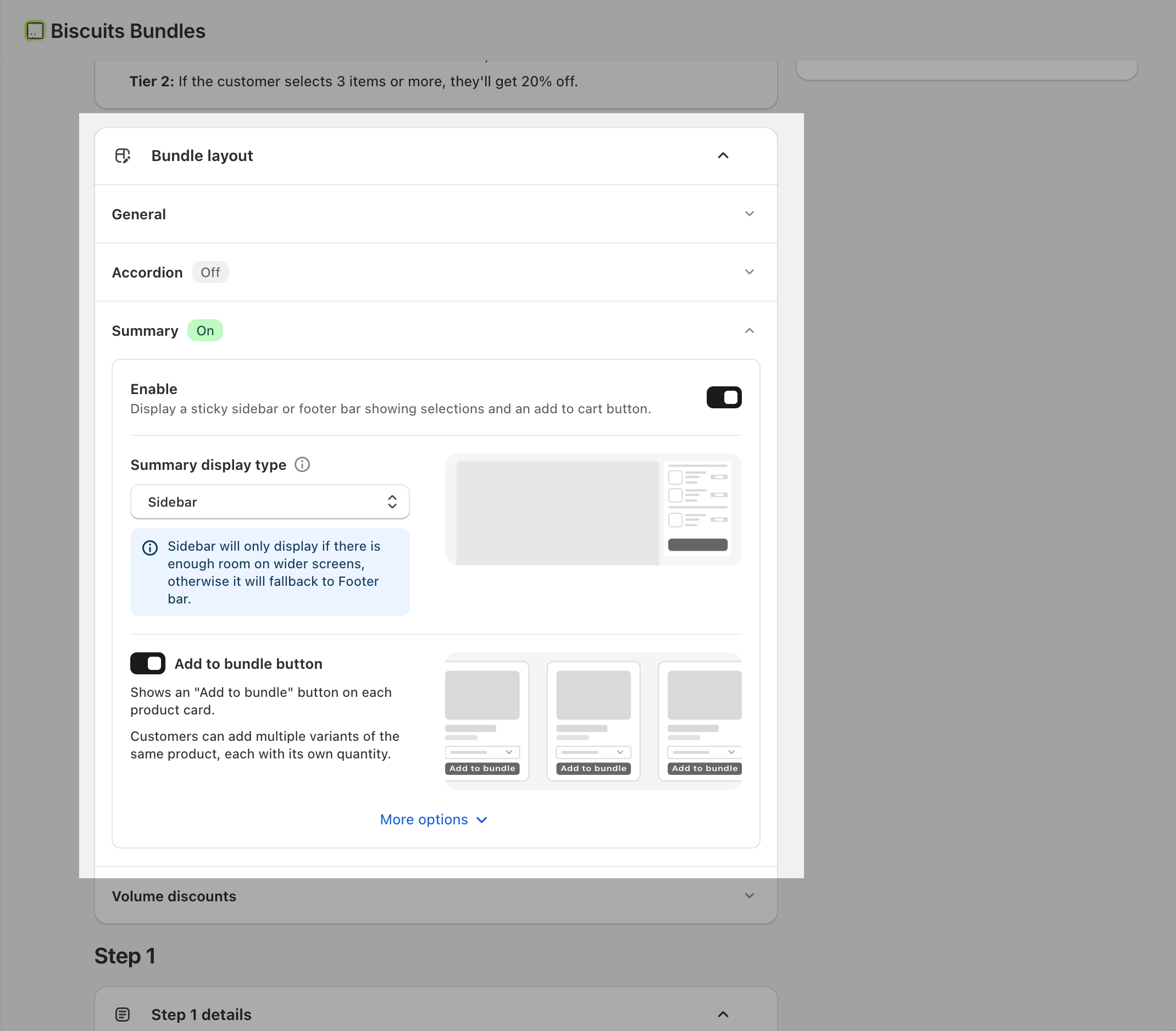
The Add to bundle button setting lives inside the Summary layout settings, so the Summary needs to be turned on first.
This feature is available on the Standard and Advanced plans.
Every product card shows an Add to bundle button in place of the quantity selector.
When a customer adds a product, the button changes to Remove and the product joins their bundle.
Customers can add more than one option of the same product, and set a quantity for each one.
Any options you preselect are already added when the page loads. Customers can remove them if they want.
If you mark a product as required, customers must add at least one of its options before they can add the bundle to their cart.
The button lives inside the Bundle layout > Summary settings area, so you turn the Summary on first, then the button beneath it.
Open a bundle in the Biscuits Bundles app.
Go to the Bundle Layout tab.
Scroll to the Summary section and turn on Enable.
Turn on Add to bundle button.
Save your bundle.
In the app, the setting describes itself: "Shows an 'Add to bundle' button on each product card" and "Customers can add multiple variants of the same product, each with its own quantity."
ℹ If the toggle shows a lock icon, your current plan doesn't include this feature yet. Upgrade your plan to turn it on.
When the Add to bundle button is on, each product card in your steps shows two extra controls: Preselected and Required. They work a little differently in this mode, so here is what to expect. For the basics of preselecting and requiring products, see Preselect and required products.
Preselected - the options that are already added to the bundle when the page loads. Customers can remove them. In this mode, a single product can have more than one option preselected.
Required (any option) - a full tick means customers must add at least one option of this product.
Required (a specific option) - a dash (an in-between state) means one specific option is required. You set this from the option itself after you expand the product.
A product can be required as any option or as a specific option, not both at the same time.
Required products are always preselected. To change a product's preselected options, clear Required first.
To set these per option, expand the product to open its list of options. There you can preselect an option, or make a specific option required.
The button labels are storefront language settings, so you can change what they say and translate them for every language you offer.
Go to Settings > Languages.
Edit Add to bundle button text. The default is Add to bundle.
Edit Remove from bundle button text. The default is Remove.
Each field allows up to 30 characters. If your store offers more than one language, set the text for each language you support. These labels only apply when the Add to bundle button is turned on.
Turning off the Add to bundle button, or turning off the Summary (which also turns it off), can change some of your step settings. Because of that, a confirmation window appears first and lists exactly what will change, with the current setting and what it becomes:
A requirement set to a specific option relaxes to "any option".
A product with several preselected options keeps one.
Nothing changes until you select Continue. Select Cancel to keep the button on and leave your settings as they are.
As the confirmation explains: "Without the Add to bundle button, each product can have one preselected option, and required products accept any of their options."
The Summary must be turned on.
Available on the Standard and Advanced plans.
Button text is limited to 30 characters per field.
I can't turn on the Add to bundle button
Two things are needed. First, turn on the Summary in the Bundle Layout tab, since the button lives inside it. Second, your plan must include the feature. If you see a lock icon, upgrade your plan to unlock it.
My button still says "Add to bundle"
The button text comes from Settings > Languages. Edit Add to bundle button text and Remove from bundle button text there. If your store offers more than one language, make sure you edit the language your store is using.
Turning it off changed my required or preselected settings
This is expected. Without the Add to bundle button, a product can have one preselected option, and required products accept any of their options. So when you turn the button off, requirements set to a specific option relax to "any option", and products with several preselected options keep one.
Related articles: Summary bar, Preselect and required products, Product or variant cards.