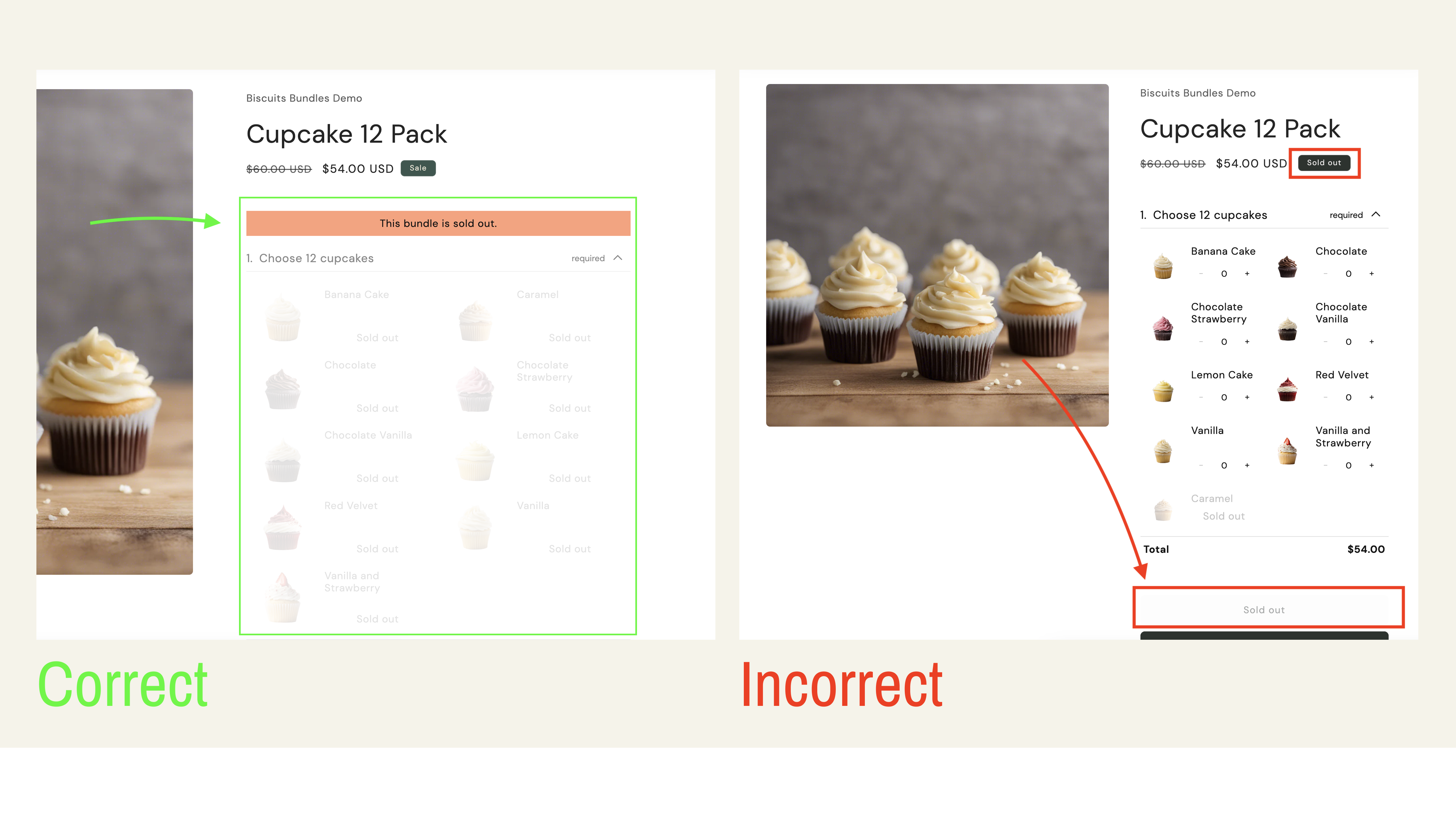
Not sure this is your situation? Start at Bundle shows as sold out or won't add to cart - start here.
This help doc troubleshoots a bundle that displays as sold out when the page loads.
A bundle inherits its availability from its required component products; the bundle parent is never inventory-tracked. There are two scenarios here: a genuine red message above the form means a required item is truly unavailable; Shopify's plain "Sold Out" on the Add to Cart button (with no red message) means a configuration issue.
Other symptoms have their own guides: sold out only for some customers or countries is contextual availability; an error after clicking Add to Cart is Add to cart errors.
If your bundle product page displays this specific error message in red: "This bundle is sold out"
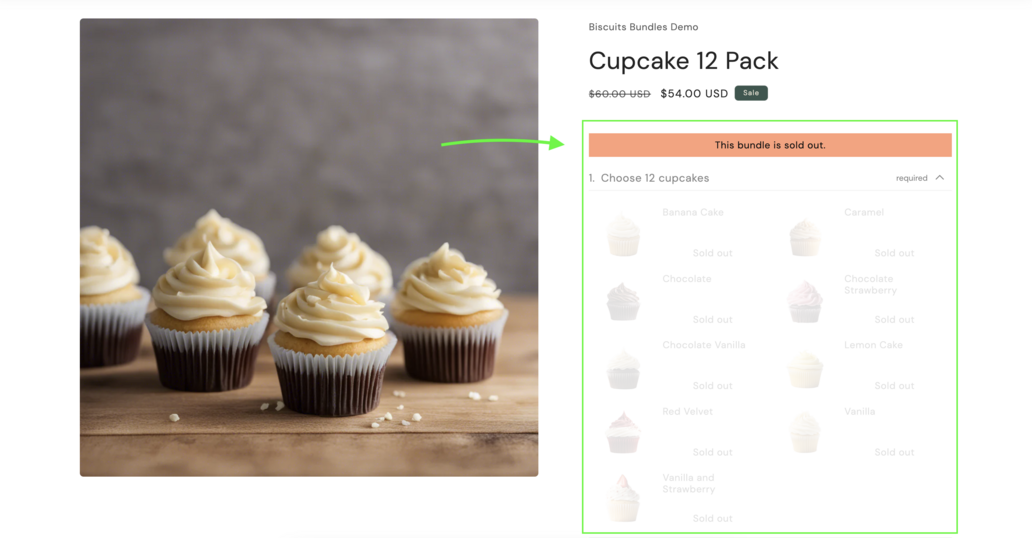
This means the bundle is genuinely out of stock because required products for a step aren't available. This is expected behaviour.
To resolve this issue, you can view the reason in detail inside the theme editor.
Open the theme editor.
Navigate to the bundle product that is showing the sold out error.
The error will show additional information explaining why the bundle is sold out.
Check this help doc for more information in resolving these errors - Bundle Form Errors
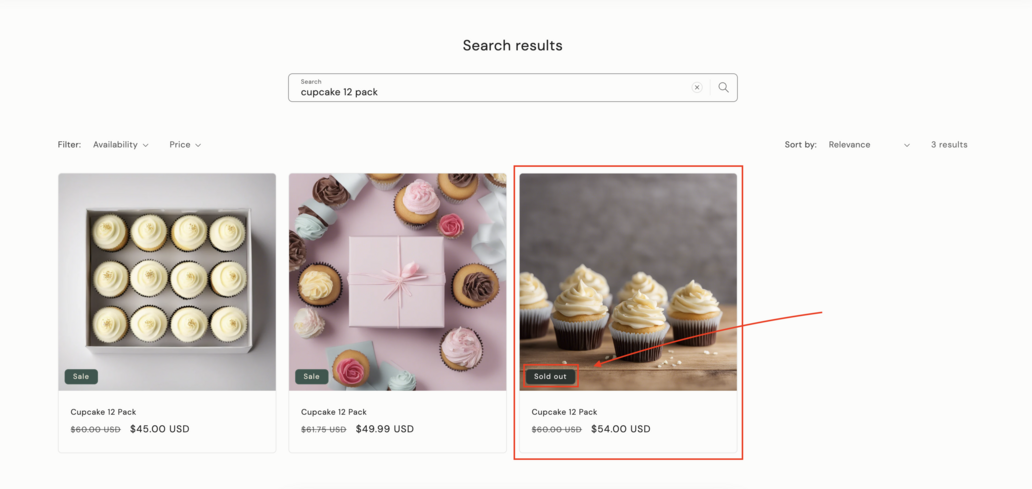
Your bundle shows as "Sold Out" on collection and search pages, and the "Add to Cart" button also displays as "Sold Out" on the product page without the red error message. This indicates there's an issue with the bundle's configuration.
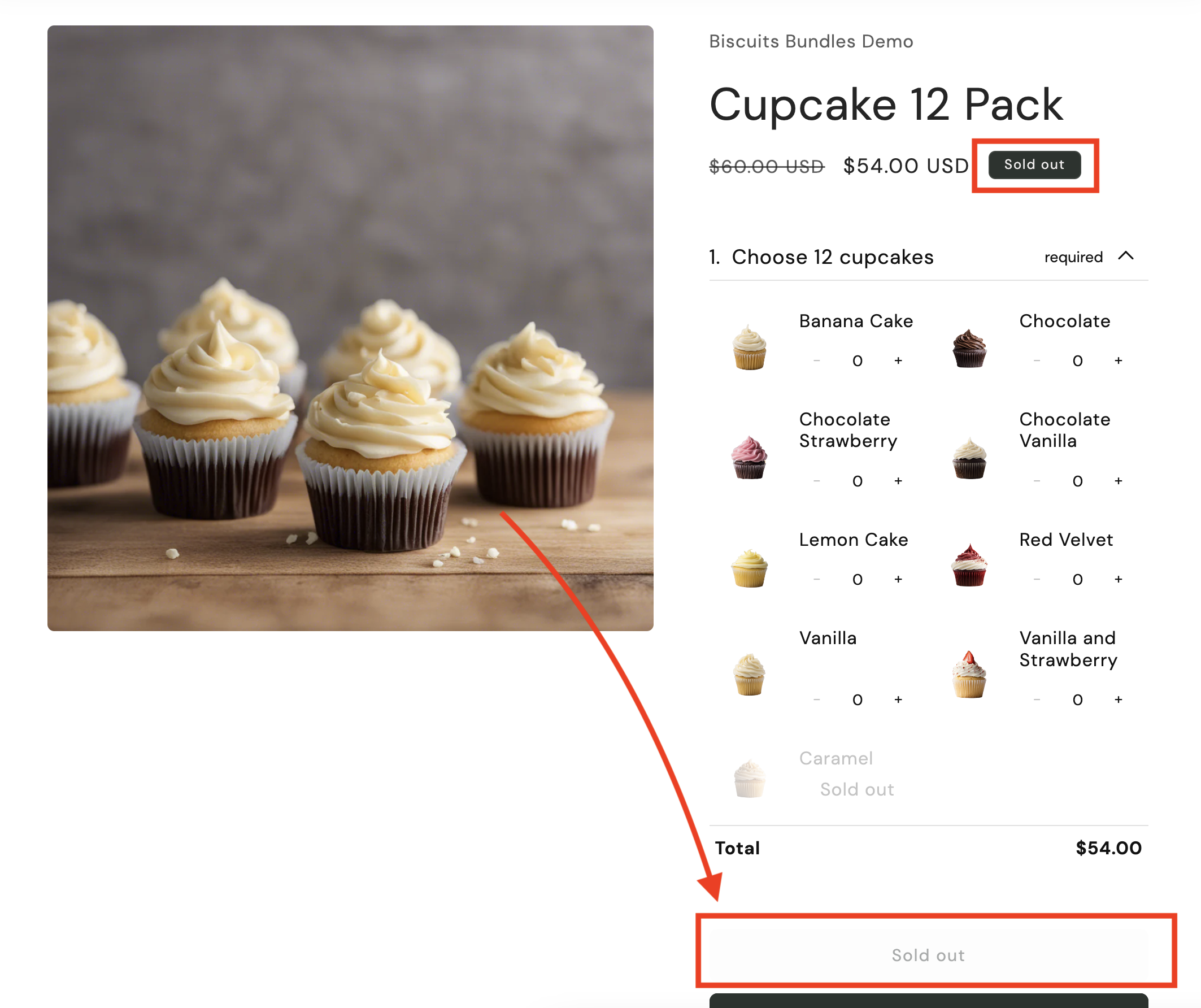
The most common cause of the add to cart button showing as out of stock is usually one of these issues:
Bundle products should be set to 'track inventory' = false, as all of the inventory is managed directly on the component items, not on the bundle product itself.
This setting can be adjusted accidentally by merchants in the Bulk Editor, or by other apps.
To resolve this, open the Bundle Product inside the Biscuits Bundles app, and you should see a warning that will advise the bundle will be corrected when saving its settings again.
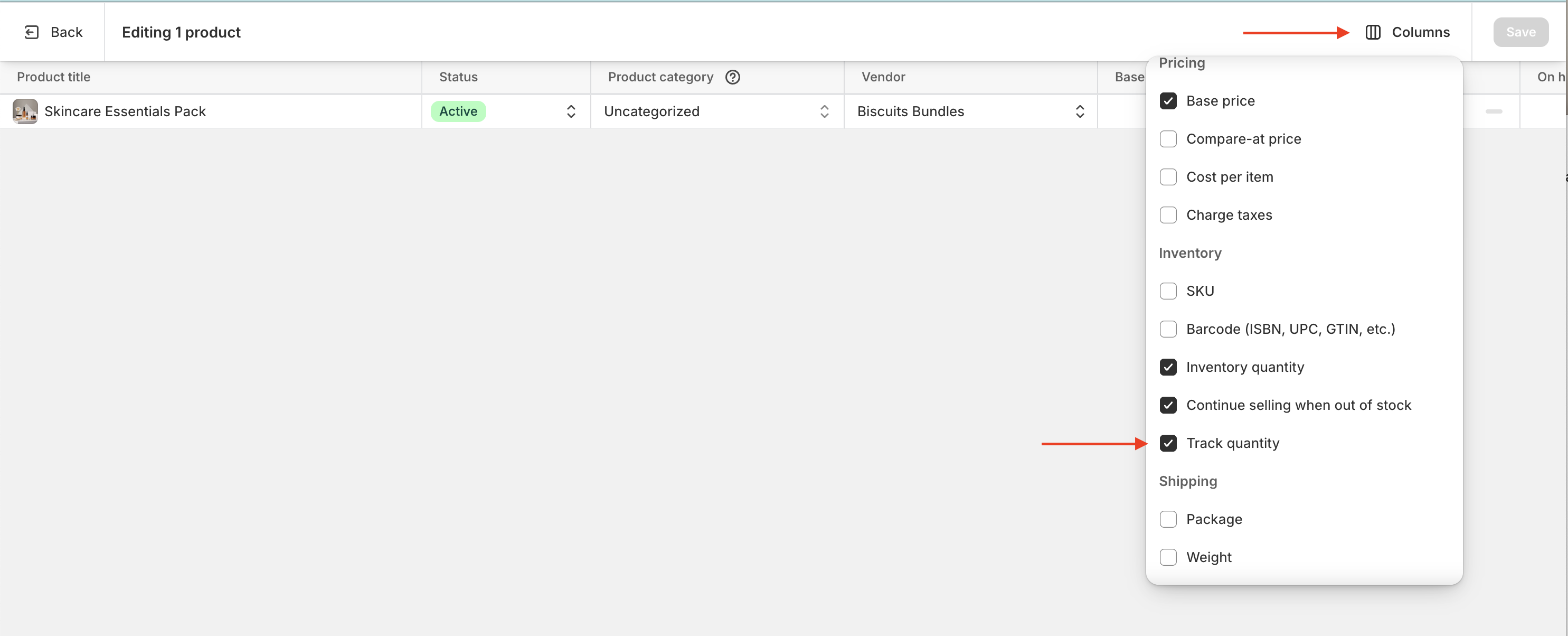
You can also adjust this setting inside the product bulk editor in Shopify.
Navigate to your Admin > Products.
Check the bundle products with the issues and then click 'Bulk Edit'.
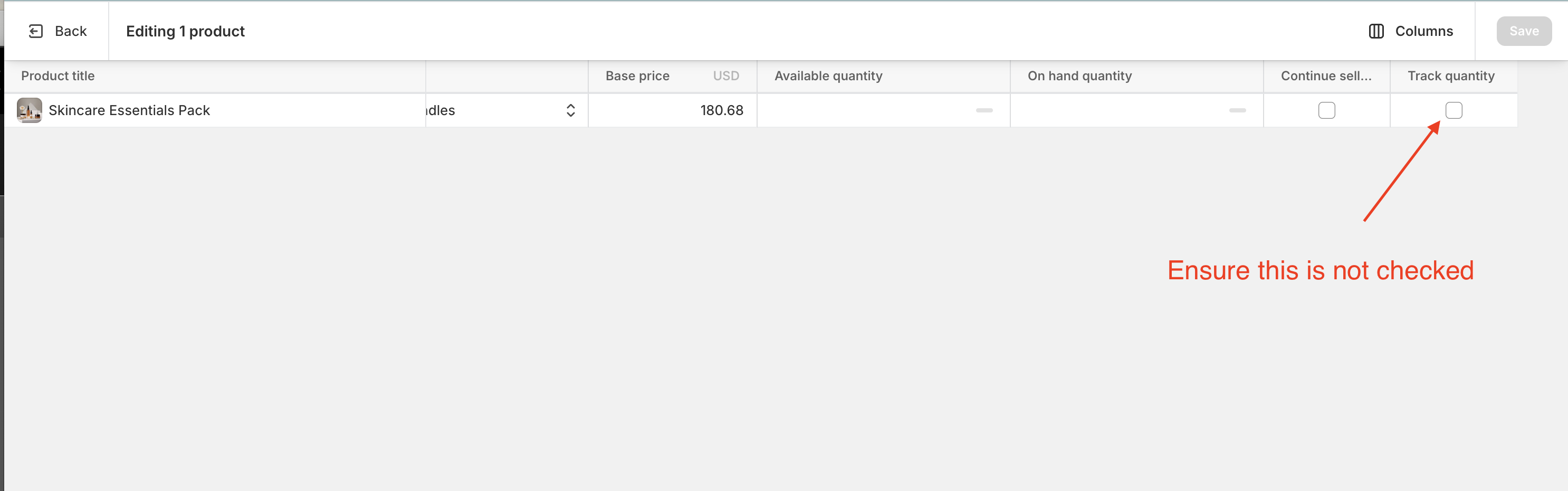
Show the column for Track Quantity.
Ensure that track quantity is not checked.
Shopify always shows contextual availability to the user based on whether a product is available in a location that ships to the customer's Market.
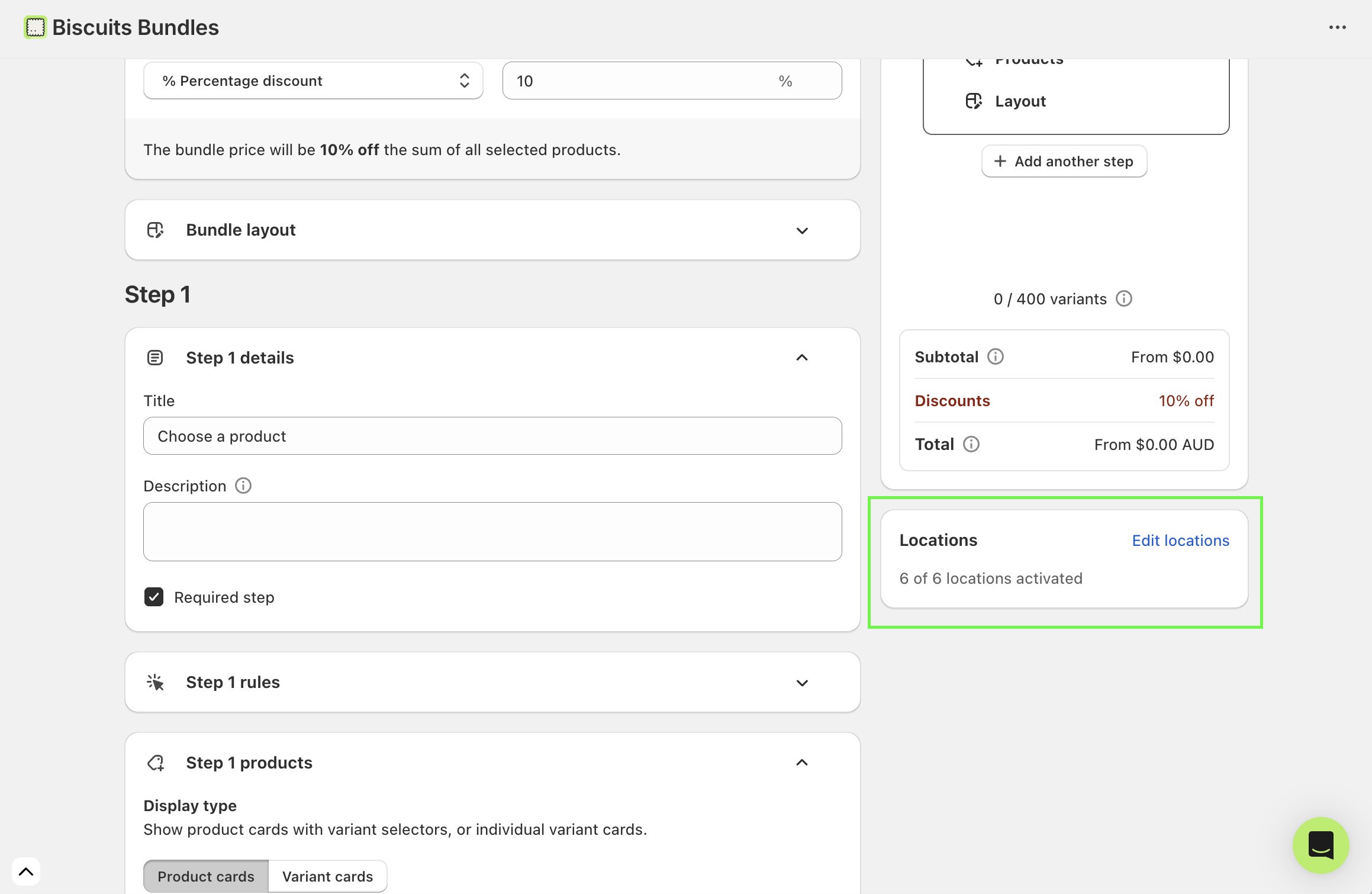
Ensure all relevant locations are enabled when editing your bundle product inside the Biscuits Bundles app - see the 'Locations' card when editing the bundle product.
How to test which customers are affected: view the bundle as a shopper in the affected region.
If you have a Market or country set up for that region, add ?country= plus the two-letter country code to the bundle URL, for example https://yourstore.com/products/your-bundle?country=DE for Germany.
Or open the theme editor and switch the preview's country/market selector to the affected market, then view the bundle. The Add to Cart state updates to that market's availability.
If it is only sold out for some markets, work through Sold out for some customers (Markets, Locations, Shipping).
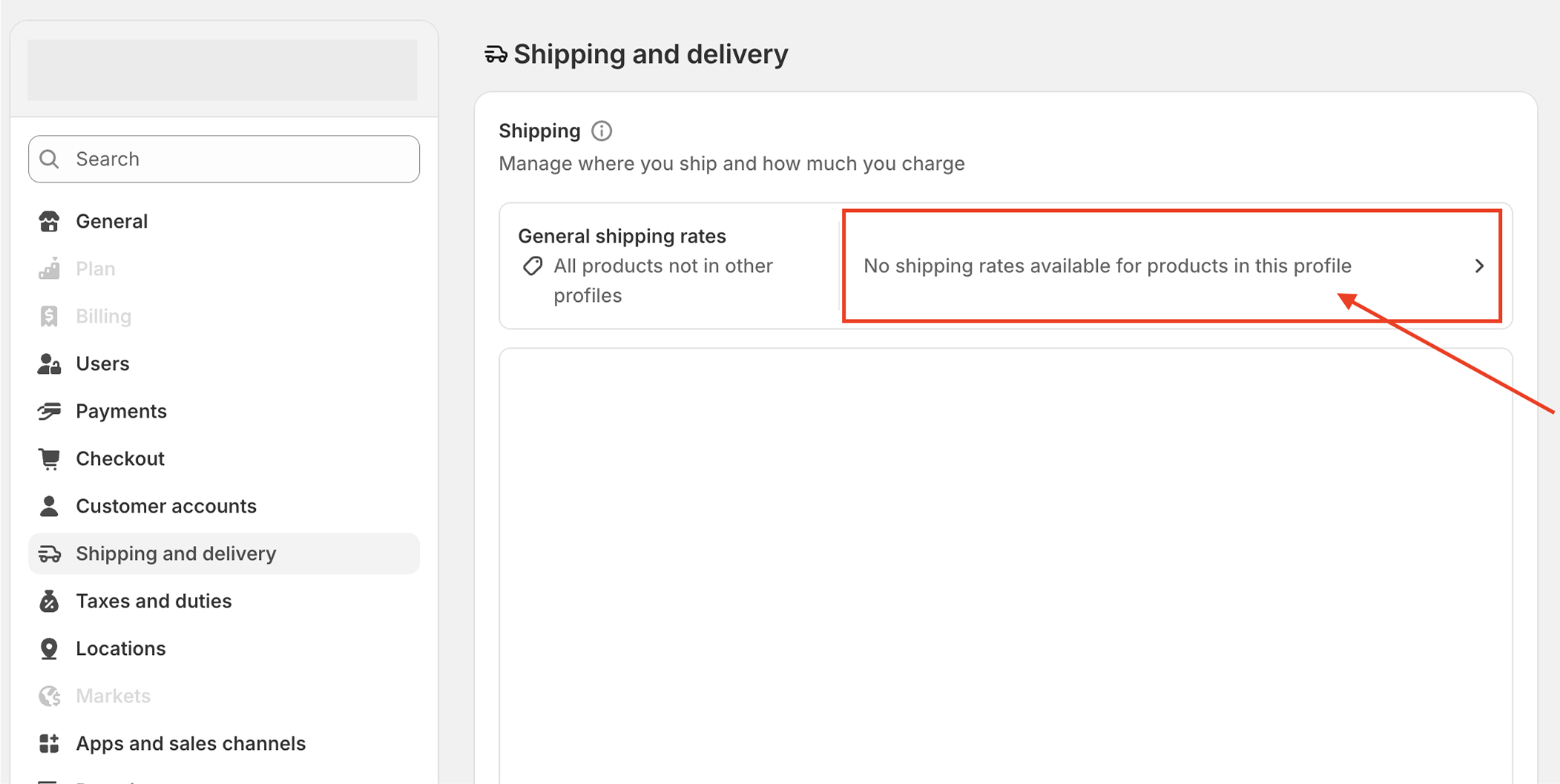
Open Settings > Shipping and delivery in your Shopify admin and check if the Default shipping profile has valid shipping rates.
The general (default) profile must have valid rates for every market and location where the bundle should be available. Full detail is in Sold out for some customers (Markets, Locations, Shipping).
Apps that add product options, line item properties, or upsells can override the add-to-cart process. This is covered in Add to cart errors.
Please confirm which of these scenarios your store is currently experiencing. If you are unable to resolve this issue, please reach out and we'll assist you promptly.