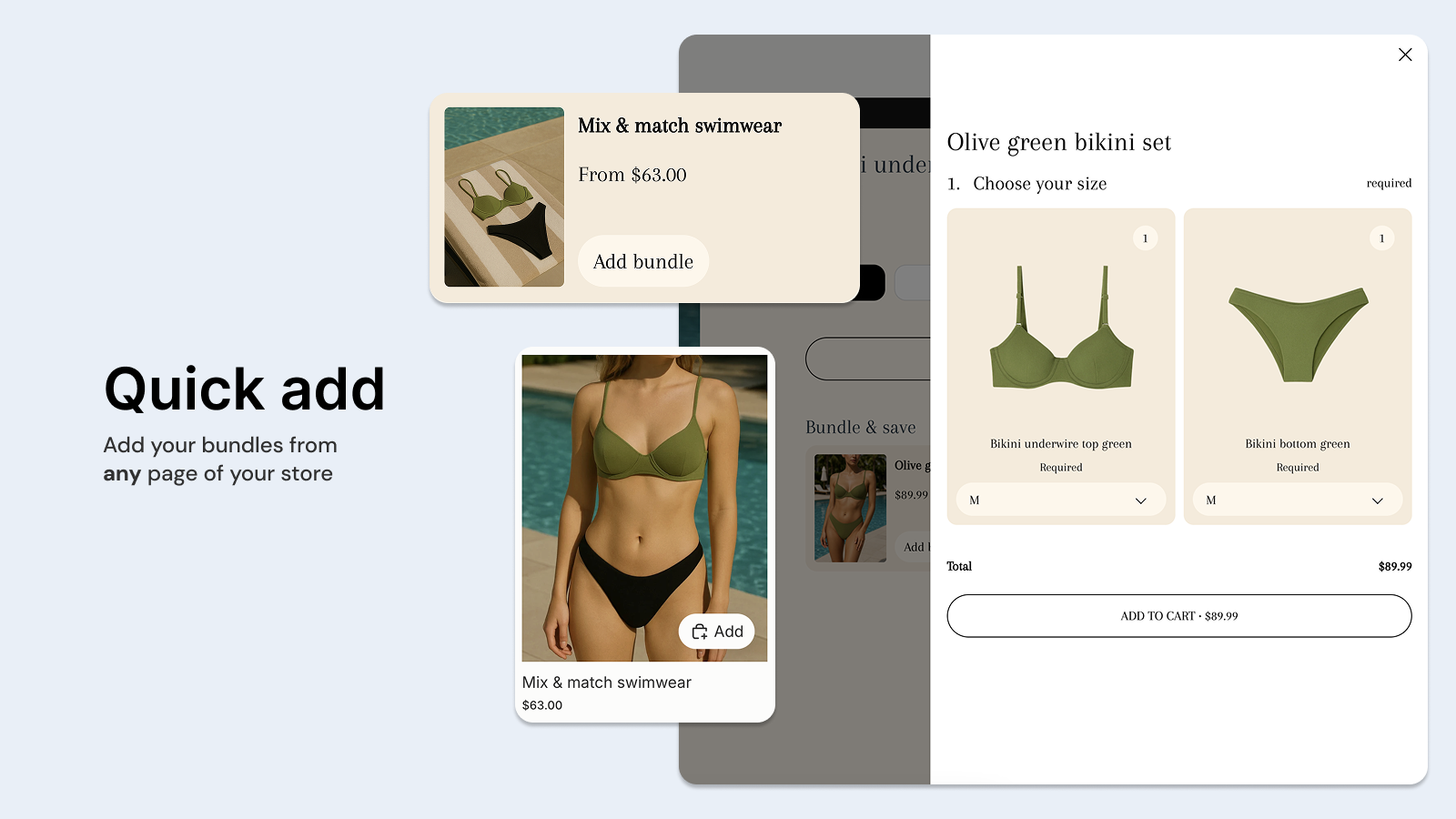
You can enable Quick Add for your bundles in the Biscuits Bundles app embed and Related Bundles section. When a customer clicks Quick Add, your bundle form will open in a drawer or modal so they can make their selections before adding the bundle to their cart.
Many Shopify themes already include their own quick add or quick view buttons on product cards, such as those shown on collection pages, search results, and featured product sections. Because bundles require customers to make selections first, your theme’s regular quick add button may not work correctly for bundle products.
The Biscuits Bundles app embed detects your bundles on product cards and updates these buttons to work with your bundle form.
These settings only apply to bundles created with Biscuits Bundles. Your regular products won’t be affected.
Before you start: every theme is built differently. Test these settings on a copy of your theme before you publish. If something does not work, contact us and we will help.
In your Shopify admin, go to Online Store > Themes and click Customize.
Click the App embeds icon on the left.
Turn on Biscuits Bundles. Click the arrow to open its settings.
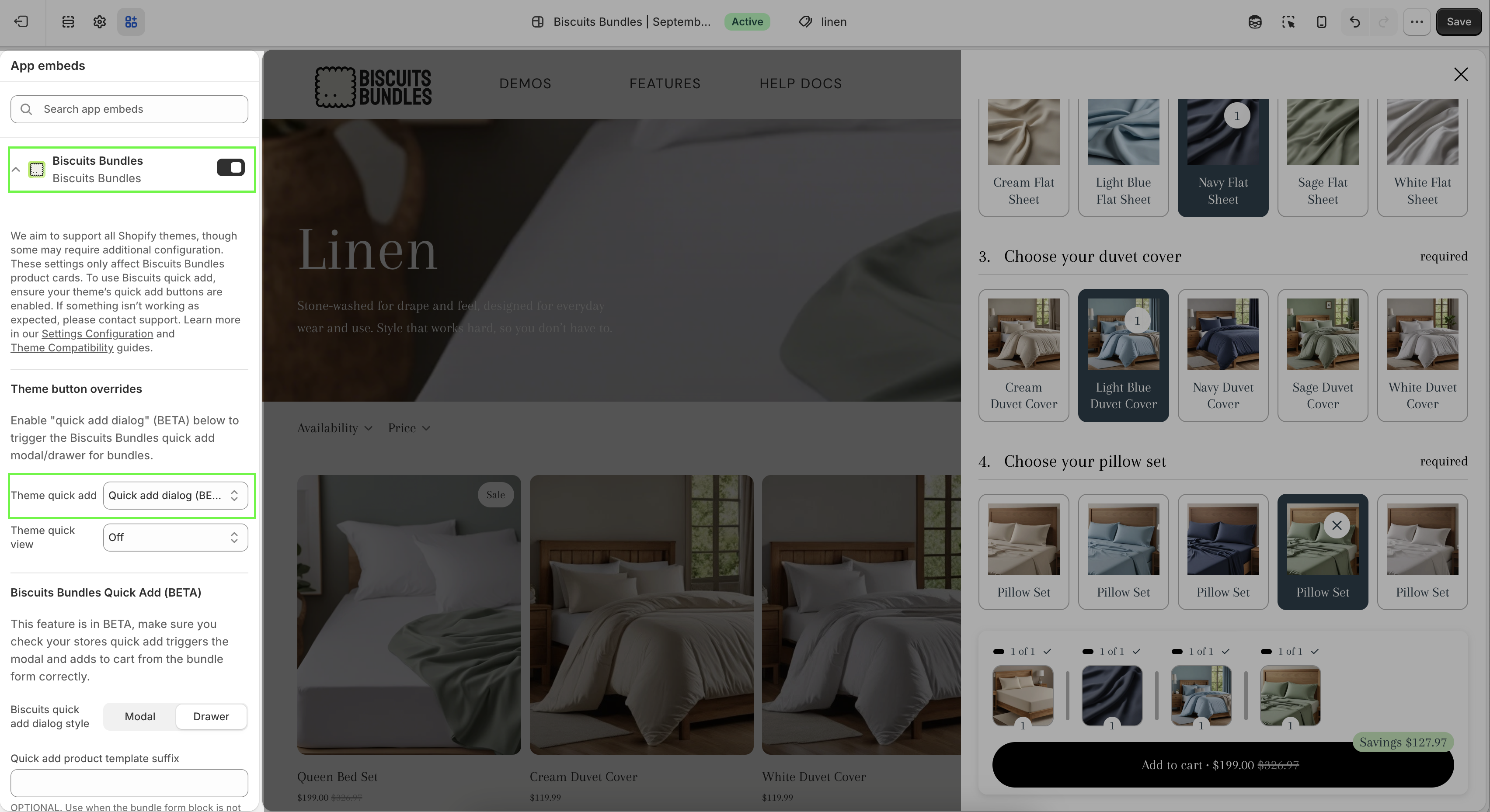
The app embed must be turned on for these settings to work.
Choose one option.
Option 1: shoppers build the bundle on the same page
Set Theme quick add to Quick add dialog.
Set Theme quick view to Quick add dialog or Hide.
Choose a Biscuits quick add dialog style: Modal or Drawer.
Make sure quick add buttons are turned on in your theme. This is usually a setting in your collection or product grid section.
Check your theme in the App embed: themes guide.
Option 2: shoppers go to the bundle page
Set Theme quick add to Replace.
Set Theme quick view to Hide.
Read on for what each option does.
This setting changes the quick add (add to cart) button on bundle product cards.
Option | What shoppers see | When to use it |
Off | Your theme's button does not change. | Not recommended. The button tries to add the bundle without the shopper's choices. The add to cart can fail. It can also cause cart errors that stop the shopper from adding the bundle correctly afterwards. |
Disable | The button shows, but shoppers cannot click it. | You want all product cards to look the same. |
Hide | The button is hidden. | You do not want a button on bundle product cards. |
Replace | The button becomes a link to the bundle page. The button text changes to your View product text. | Recommended. Shoppers build their bundle on the full bundle page. |
Quick add dialog | The button opens the bundle builder in a modal or drawer. Shoppers stay on the same page. The button keeps your theme's text. | You want shoppers to add bundles without leaving the page. Check your theme is supported first. |
Off
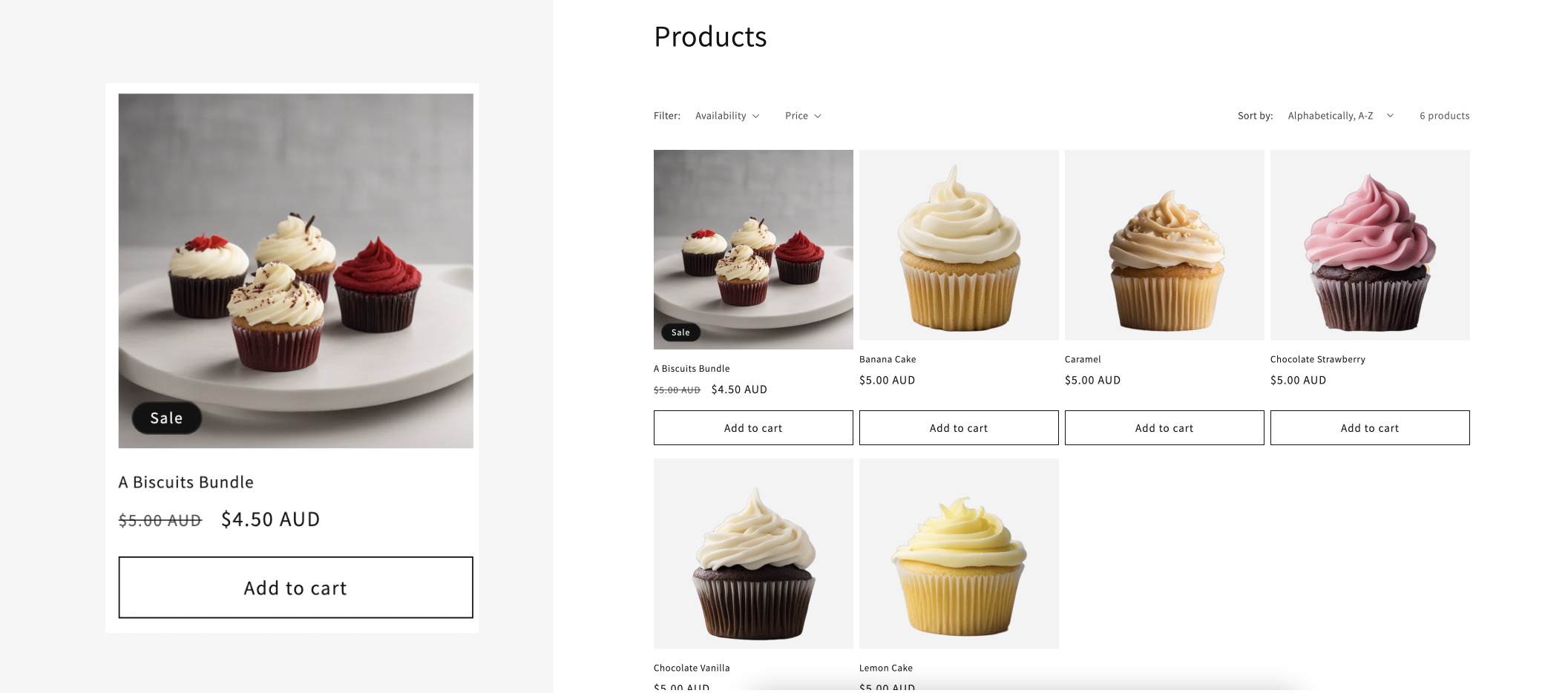
Dawn theme collection page. The bundle product still shows the theme's add to cart button.
Disable
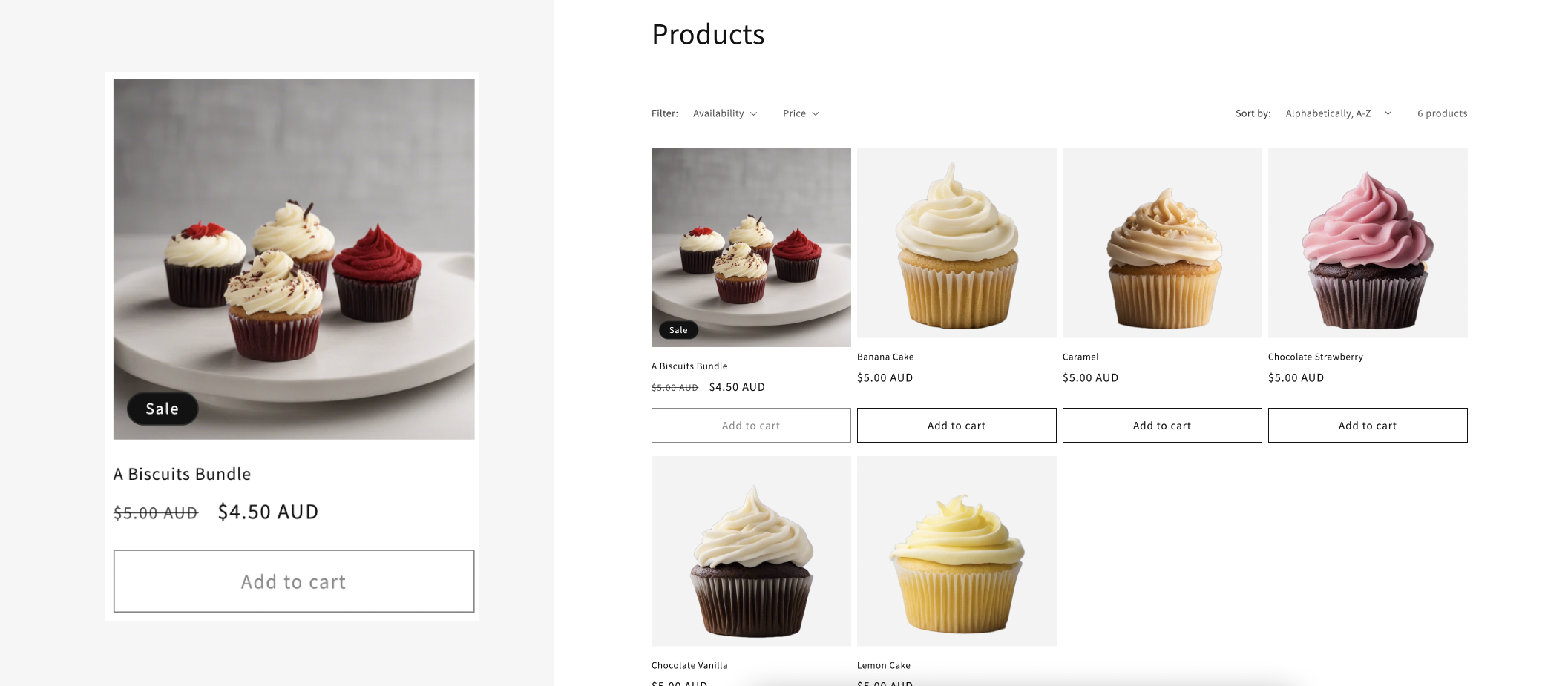
Dawn theme collection page. The add to cart button shows, but shoppers cannot click it.
Hide
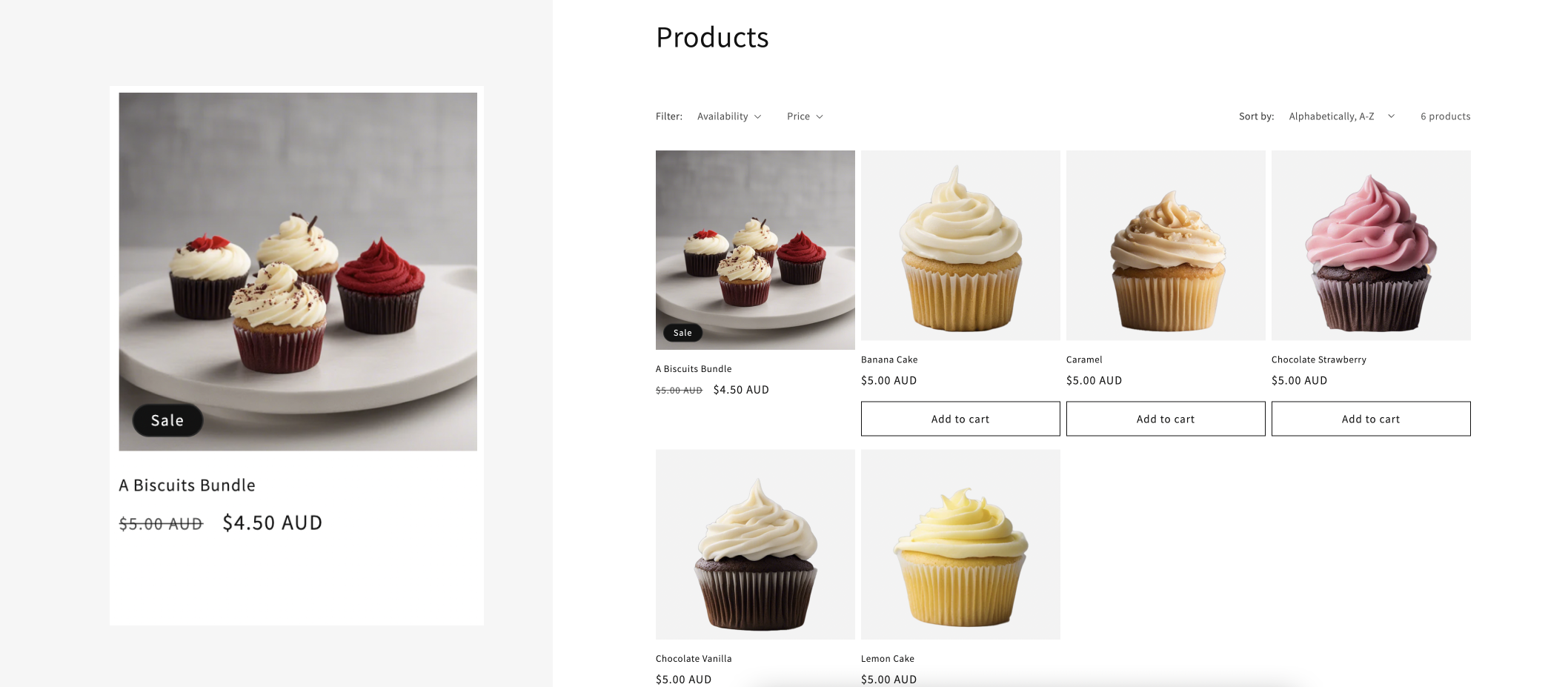
Dawn theme collection page. The quick add button is hidden.
Replace
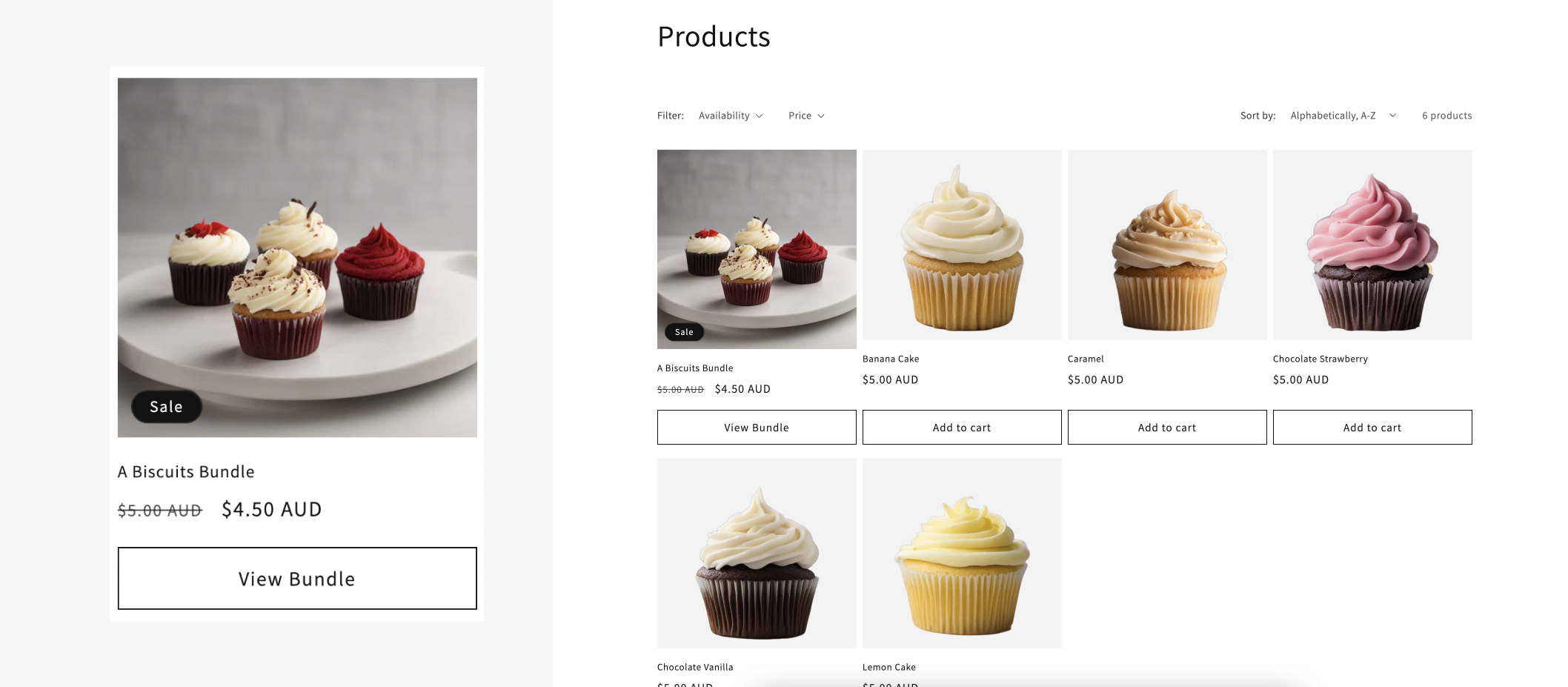
Dawn theme collection page. The quick add button is now a link to the bundle page.
This setting changes the quick view button on bundle product cards. A quick view button opens a small product window from your theme.
Option | What shoppers see | When to use it |
Off | Your theme's button does not change. | Not recommended. Your theme's quick view window can let shoppers add the bundle without their choices. This can cause the same cart errors as above. |
Disable | The button shows, but shoppers cannot click it. | You want all product cards to look the same. |
Hide | The button is hidden. | Recommended if you use Replace. |
Quick add dialog | The button opens the Biscuits quick add dialog, the same as the quick add button. | You use the quick add dialog. If a card shows both buttons, both open the dialog. |
Off
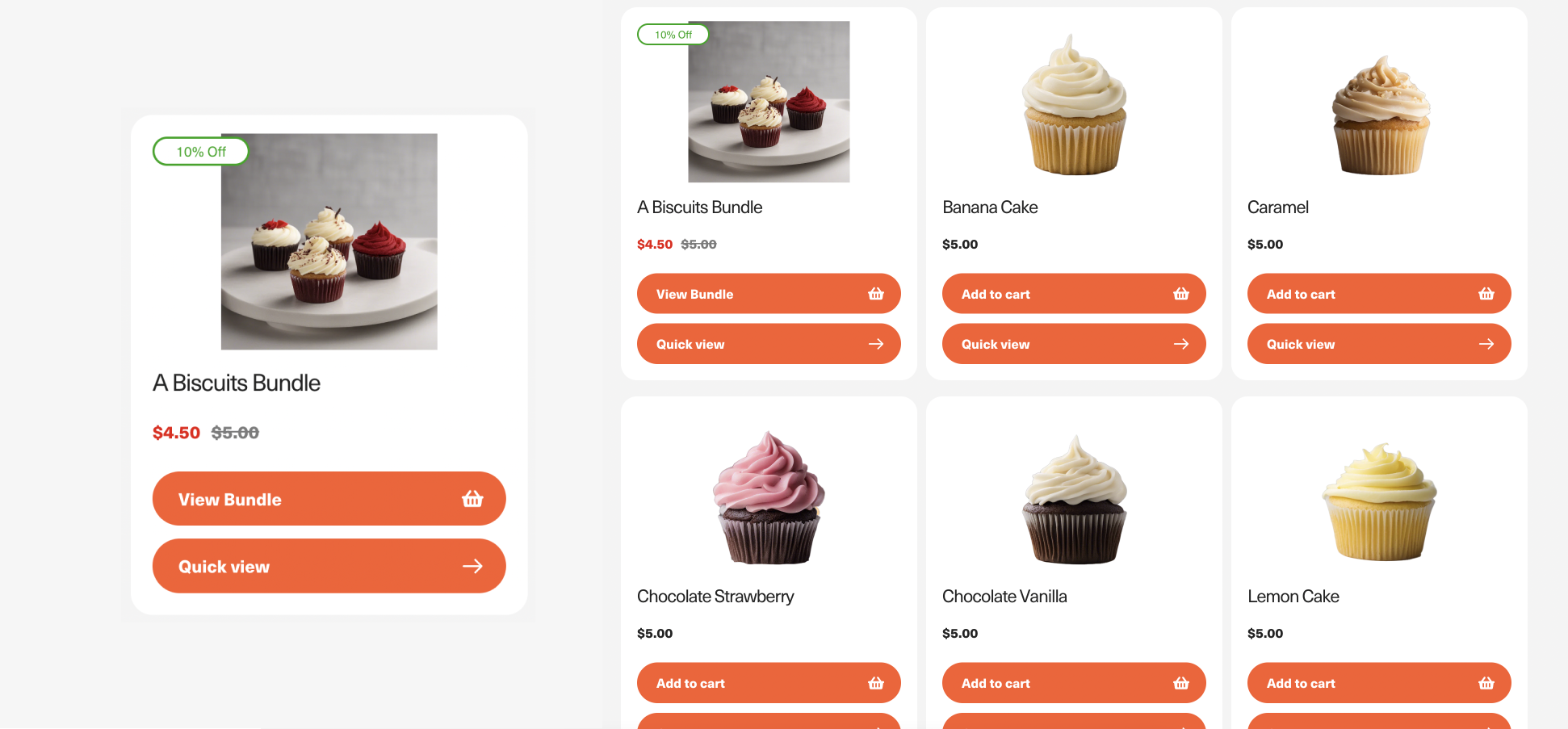
Pursuit theme collection page. The bundle product still shows the quick view button.
Disable
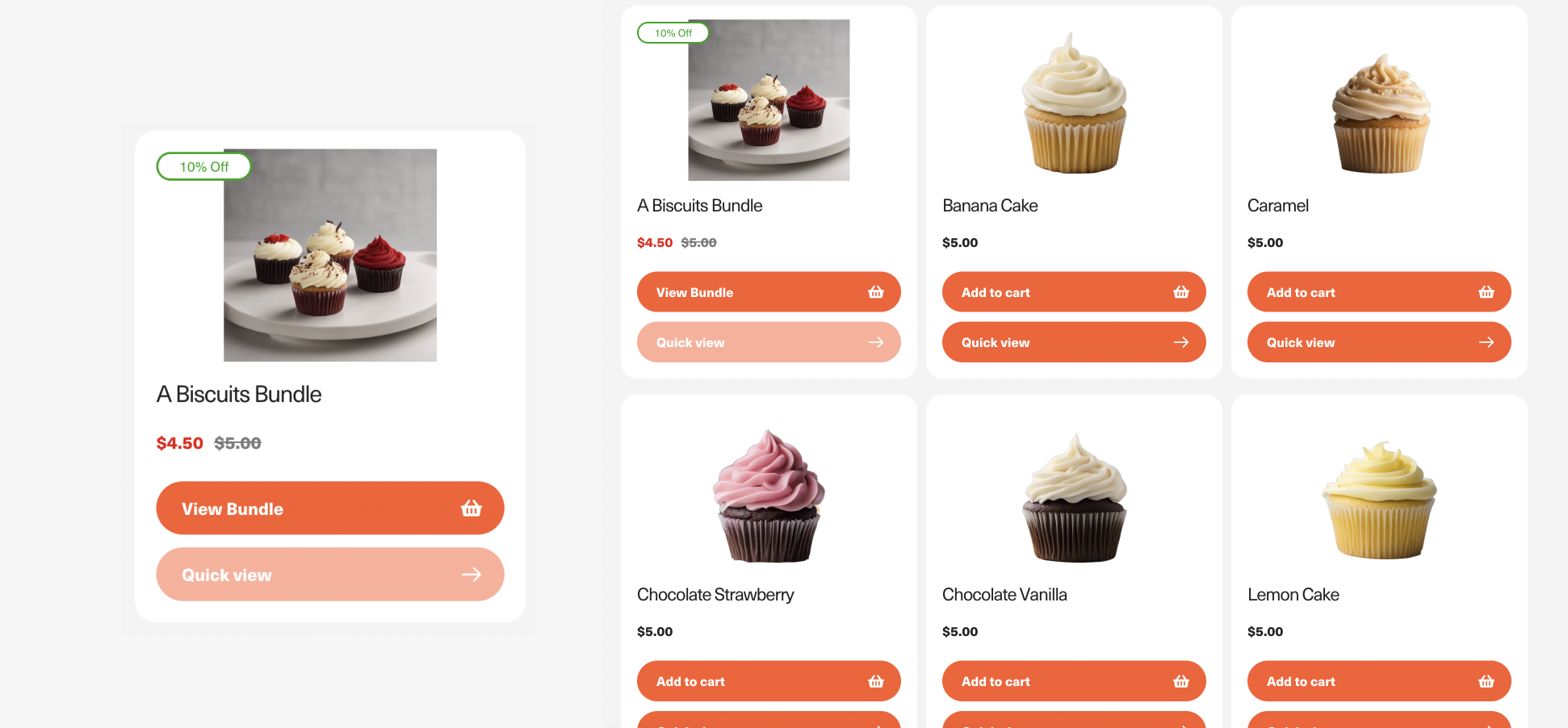
Pursuit theme collection page. The quick view button shows, but shoppers cannot click it.
Hide
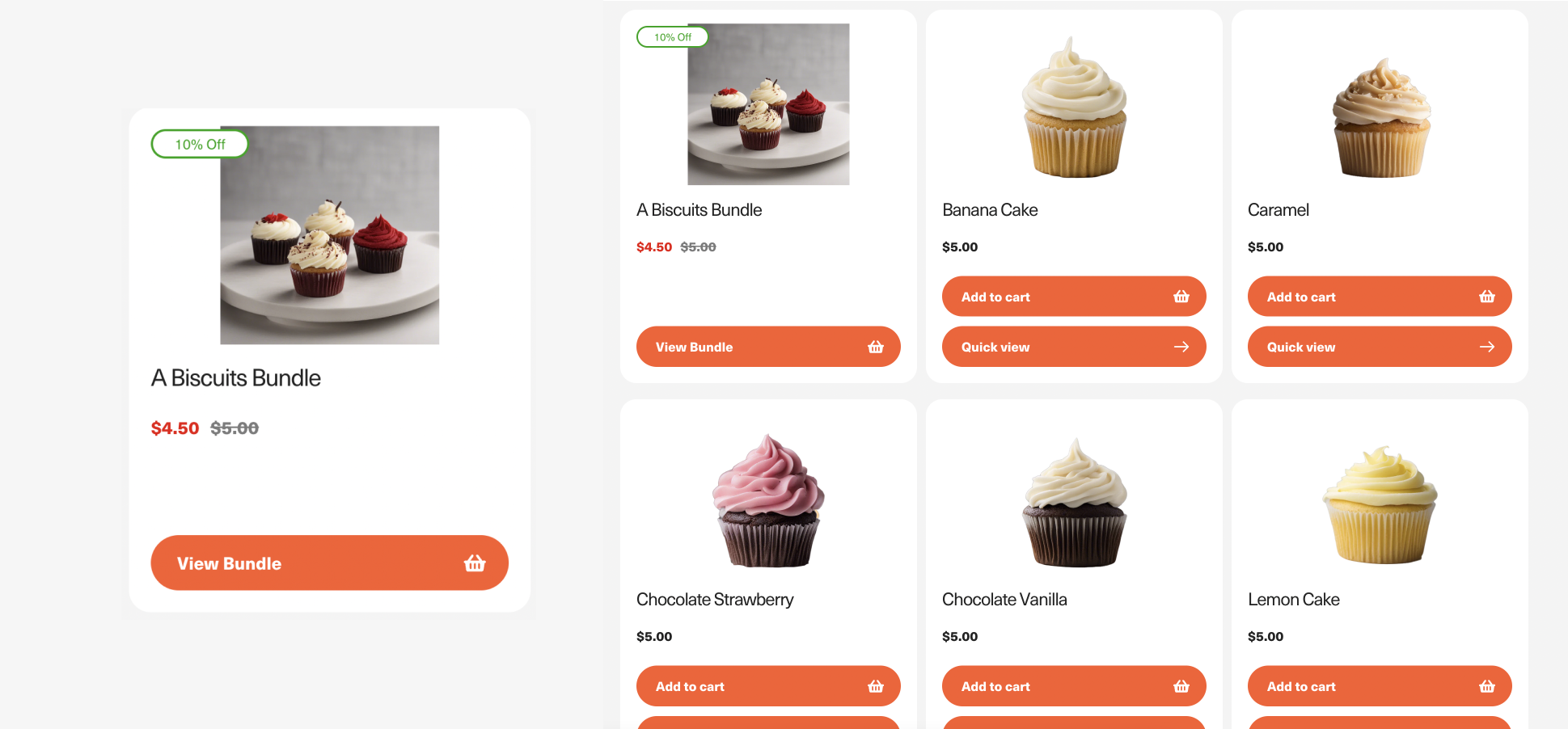
Pursuit theme collection page. The quick view button is hidden.
The shopper clicks the quick add (or quick view) button on a bundle product card.
The bundle builder opens in a modal or drawer. The shopper stays on the same page.
The shopper makes their choices and clicks add to cart.
What happens next depends on your theme:
If your theme's cart is supported: the dialog closes and your theme's cart opens.
If it is not supported yet: the button shows the bundle was added, and the dialog closes after 2 seconds. The shopper stays on the page. The bundle is in the cart.
See which themes open the cart in the App embed: themes guide.
Use Biscuits quick add dialog style to choose how the dialog looks.
Modal: a window in the middle of the screen. On phones, it opens at the bottom of the screen.
Drawer: a panel on the right side of the screen.
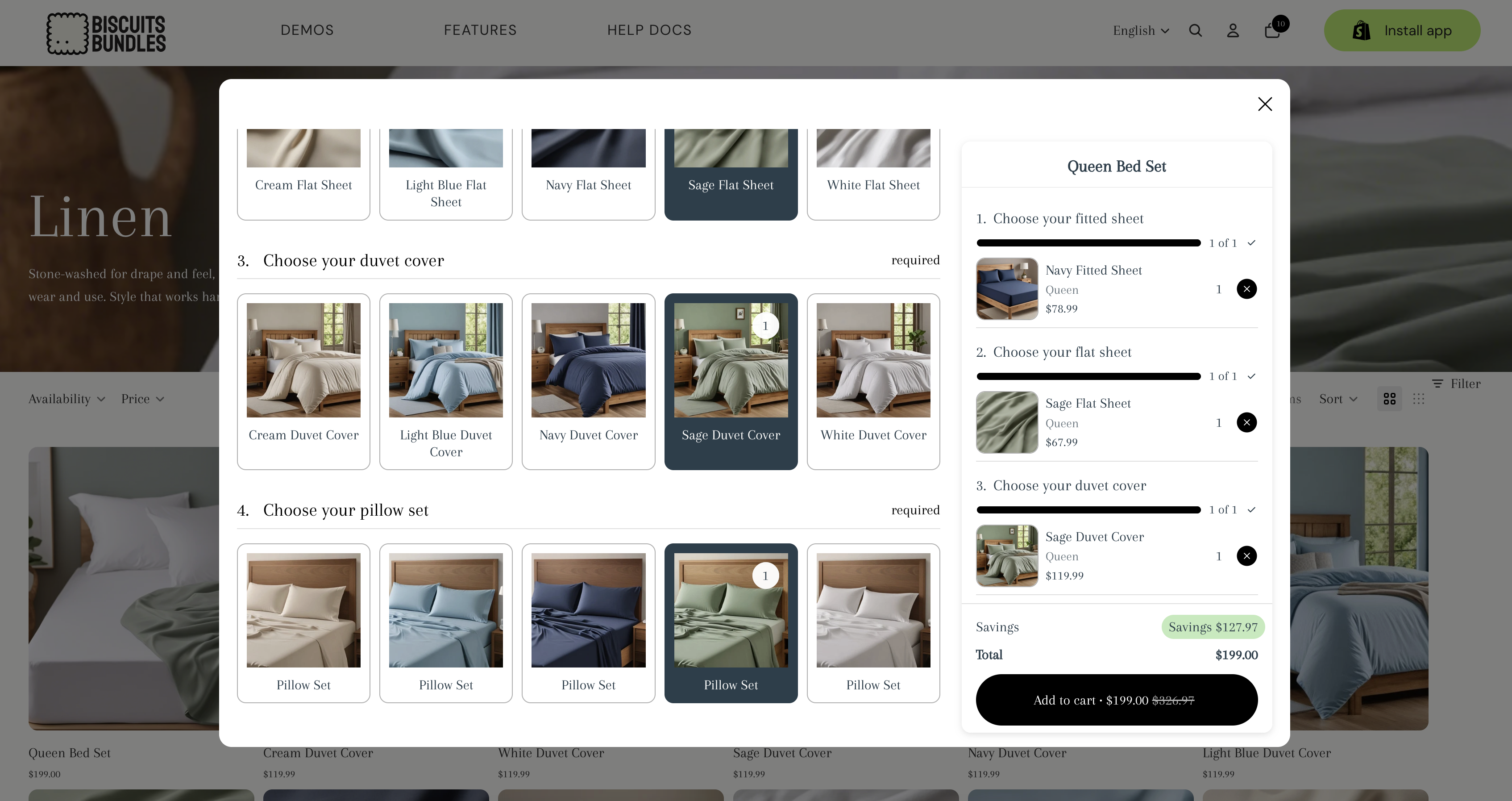
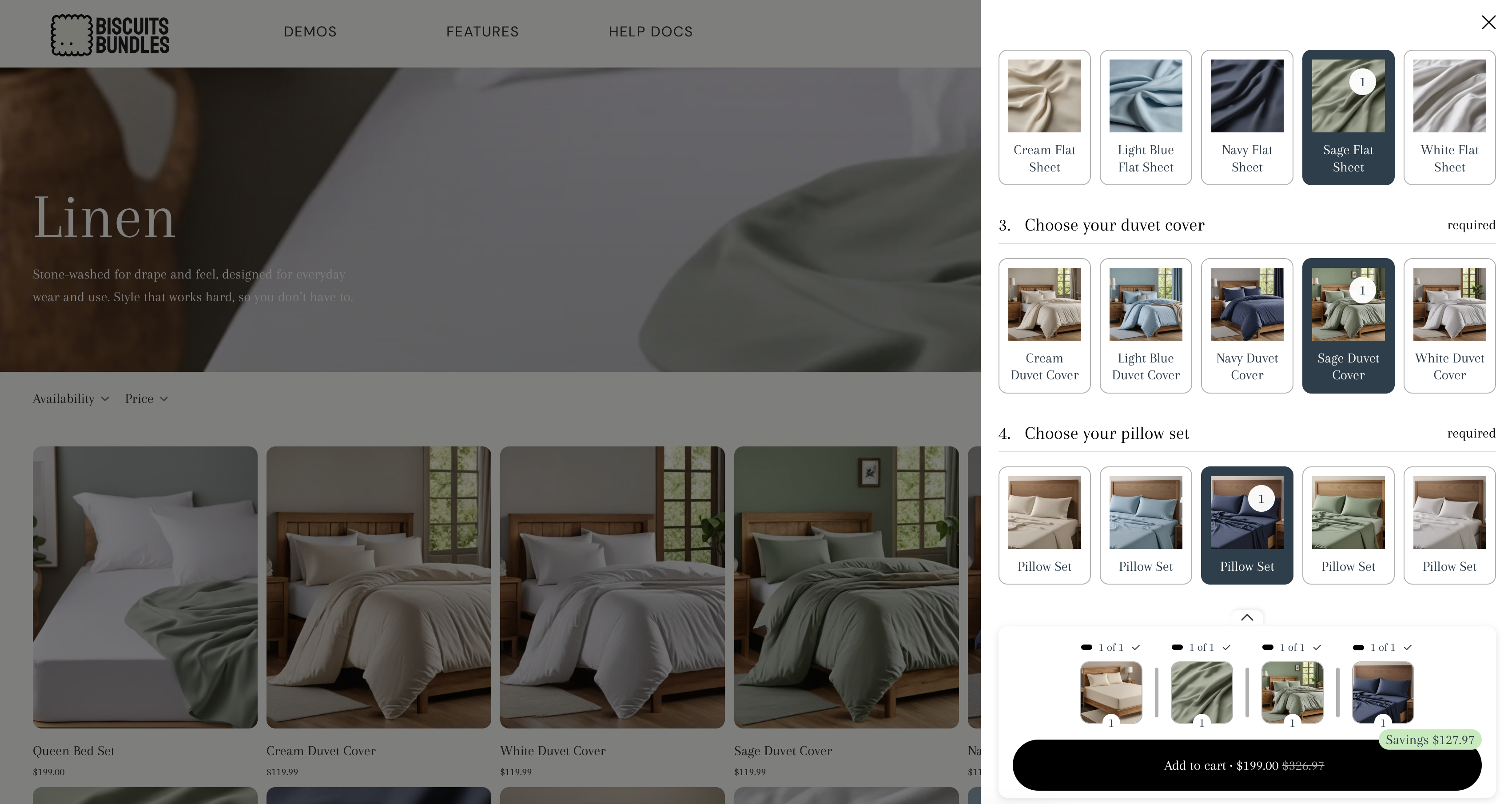
Your theme's quick add buttons must be turned on. The dialog uses your theme's own quick add or quick view buttons. If your product cards have no button, there is nothing for the app to change.
The dialog always uses the Biscuits add to cart button. This is true even if your bundle page uses your theme's add to cart button.
Custom CSS works. Custom JS does not run. Custom CSS from your Biscuits Bundle Builder app block is used in the dialog. Custom JS from the app block does not run in the dialog. If your bundle depends on Custom JS, test it in the dialog, or use Replace.
Shoppers keep their choices. If a shopper closes the dialog and opens the same bundle again, their choices are still there. This works for the last 5 bundles they opened. Reloading the page clears their choices.
Language and currency in the dialog match the page the shopper is on.
Open in a new tab. If a shopper holds Ctrl (Windows) or Cmd (Mac) and clicks the button, the bundle page opens in a new tab.
Theme pop-ups. If some types of theme pop-up window are already open, like a search window, the button goes to the bundle page instead.
Dialog text. You can change the loading text (Quick add loading text) and the screen reader label for the close button (Dialog close label) in the app's translation settings. See Customise the language of your bundle form.
Most stores do not need these. Leave them empty unless you know you need them, or we ask you to use them.
Quick add product template suffix
The dialog loads the bundle from the bundle's product page. By default, it uses the product's normal template. To load the bundle from a different product template, enter the template name here. For example, enter quick-add to use the product.quick-add template. The Biscuits Bundle Builder app block must be on that template.
Quick add content css selector
By default, the dialog shows only the bundle builder. To show more of the product page, enter a CSS selector for a section around the bundle builder, for example .quick-add-content. That section must include the Biscuits Bundle Builder app block. Theme scripts do not run in the dialog, and some theme styles may not load. Test carefully.
This applies to Replace only. With Quick add dialog, the button keeps your theme's text.
With Replace, the button text changes to your View product text. To change it, open the Biscuits Bundles app, go to the translation settings, and find View product text in the App embed group. See Customise the language of your bundle form.
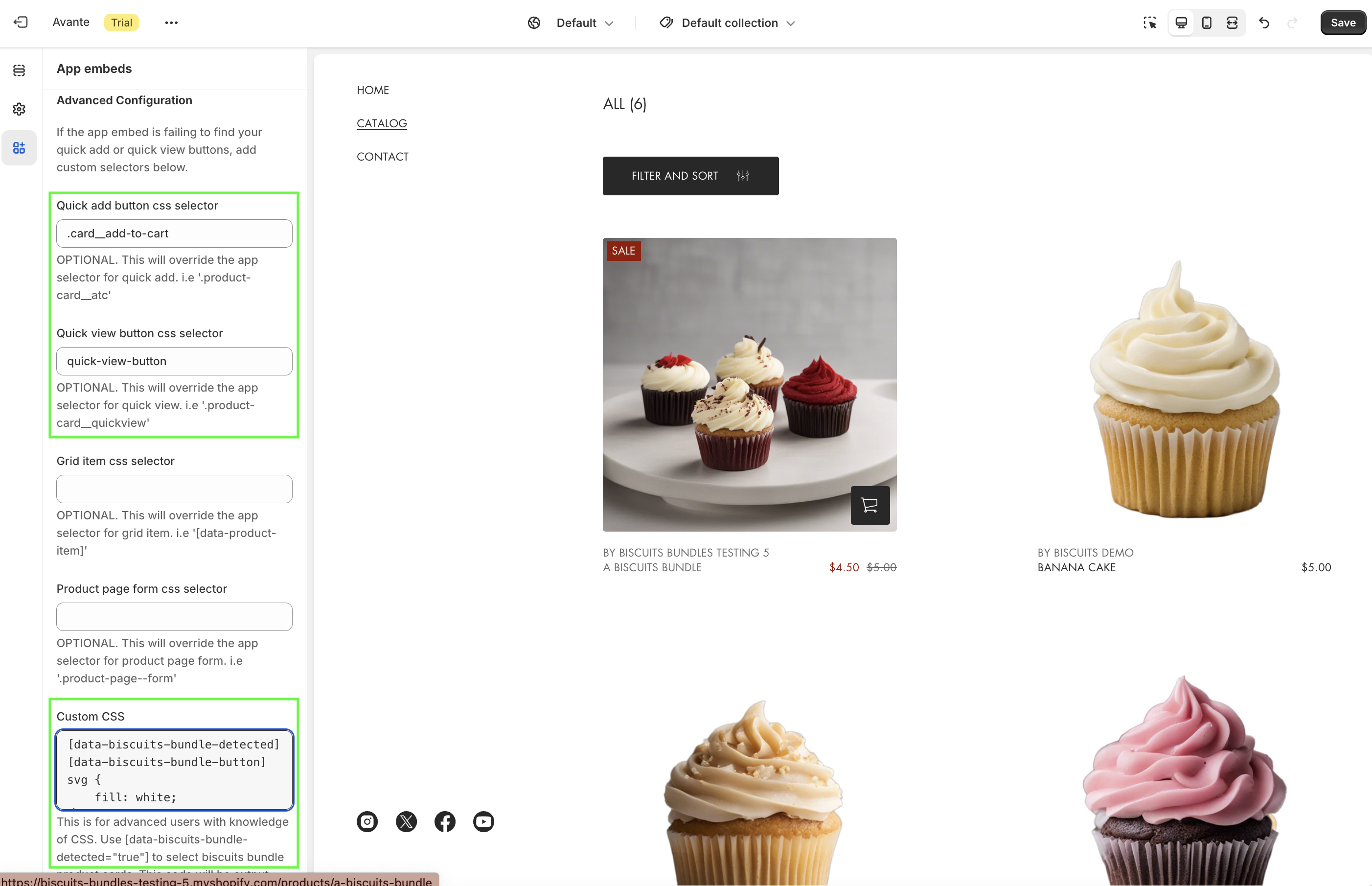
Only use these settings if the app embed does not find your theme's buttons, and you know how to use CSS selectors. First check the App embed: themes guide. Many themes are now set up for you. You can also contact us.
Quick add button css selector
Quick view button css selector
Grid item css selector (the product card)
Product page form css selector
QUICK ADD Replacement button classes: adds CSS classes to the new button so it matches your theme's style. Used by Replace and Quick add dialog. Enter class names without the dot, with a space between each one. Do not add classes that your theme uses to add products to the cart.
Custom CSS: use [data-biscuits-bundle-detected="true"] to style bundle product cards.
Example: the Avante theme needs a quick add button selector and a quick view button selector. It also needs one line of CSS to make the cart icon white in the new button.
The Related Bundles app block can also open the quick add dialog. It does not need the app embed. See Related bundles.
Check Theme quick add (or Theme quick view) is set to Quick add dialog, and you clicked Save.
Check the Biscuits Bundles app embed is turned on.
Check your theme in the App embed: themes guide.
Check quick add buttons are turned on in your theme.
Check the product is a bundle made in Biscuits Bundles, and it is published.
Check your theme in the App embed: themes guide.
Check the Biscuits Bundle Builder app block is on the product template the bundle uses. See Why can't I see my bundles on the product page?
If you use Quick add product template suffix, check the template name is correct and the template has the app block.
Some themes do not support opening the cart after a quick add yet. The bundle is still in the cart. Check the App embed: themes guide and contact us so we can look at your theme.
Contact us. Your theme may need a Grid item css selector, and we can tell you what to enter.